

Why This Guide Matters
Installing and updating multiple apps manually can be time-consuming and risky. Ninite solves this by letting you install or update dozens of programs at once with just a few clicks, securely and without bloatware. It’s a trusted tool for both individual users and IT professionals in 2026.
What You’ll Learn Here
This guide shows how to select apps, download a custom installer, and update software automatically with Ninite. You’ll also discover its key advantages: time efficiency, simple interface, and secure downloads from official sources. Plus, it covers Ninite Pro for businesses managing multiple devices.
Who Should Use Ninite
Perfect for home users who want hassle-free app management, IT professionals seeking to update software across multiple machines, and businesses prioritizing security and efficiency. Whether for personal use or enterprise deployment, Ninite simplifies the entire software installation process.
Keeping multiple apps up-to-date on your PC can be a tedious task. Ninite offers a simplified solution, letting you manage multiple installations and updates with ease. This article will guide you through the simple steps of using Ninite to keep your software current and secure.
Dive in to save time and avoid hassle!
Ninite 2026: Key Takeaways for Installing & Updating Apps
- Ninite allows users to install and update multiple applications with just a few clicks, saving both time and energy that would otherwise be spent managing software updates individually.
- The platform is designed with simplicity in mind, featuring a easy-to-use interface that makes it accessible for both personal use and professional environments through its standard service as well as the Ninite Pro version.
- Security is a priority for Ninite; it only downloads from official sources to ensure clean installations free of malware, which has earned the trust of millions of users worldwide.
- Users can choose from a wide variety of essential programs grouped by category on the website. This makes it easier to find and select the software they need.
- Installing or updating apps through Ninite does not include unwanted bundled software like toolbars. This ensures a clean installation process without additional bloatware.
What is Ninite? How It Works to Install & Update Apps
Ninite simplifies the process of setting up and updating apps on your computer. With just a few clicks, you can select from a list of widely-used programs like web browsers and media players, then sit back while Ninite does all the heavy lifting.
This tool automatically downloads the latest versions directly from the official sites, ensuring you get clean, malware-free software.
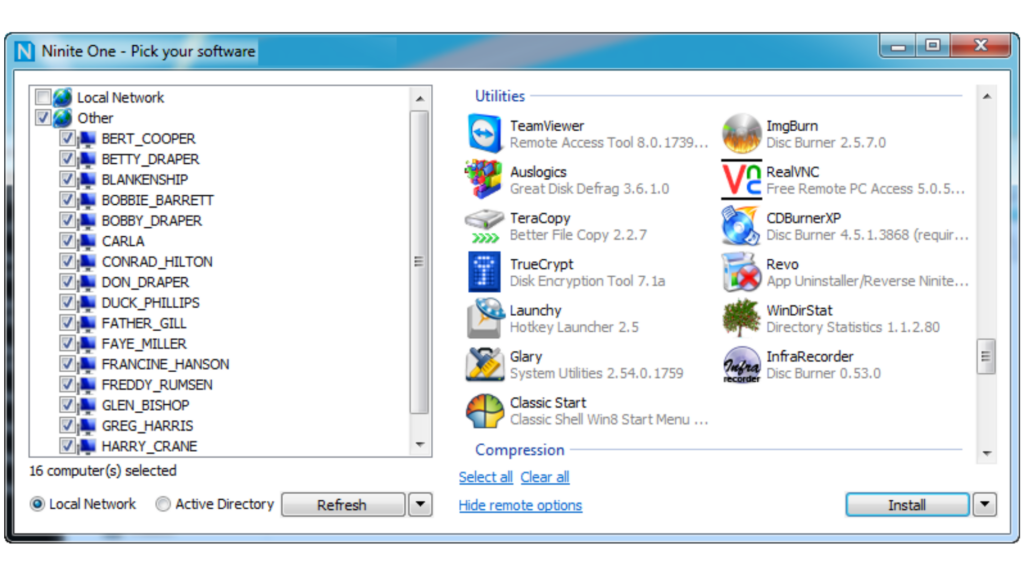
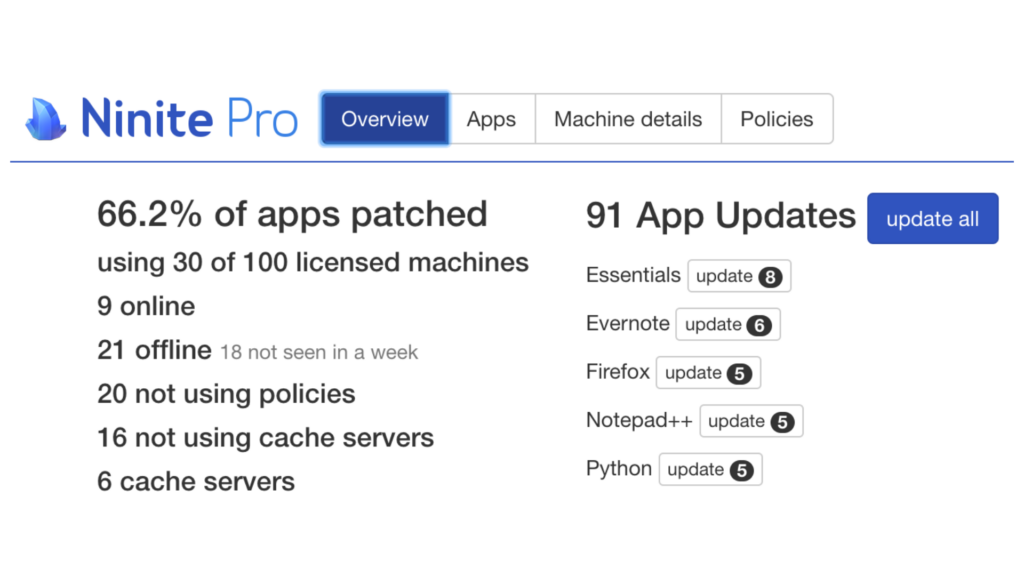
For IT professionals or businesses that need tighter control over software deployment, Ninite Pro offers strong features for managing applications across multiple machines. The service continuously monitors updates without user intervention. This makes sure all installed programs are current with patches to minimize security risks.
Moreover, as it’s designed to run unobtrusively in the background during installation or update processes, users enjoy uninterrupted productivity throughout their day.
Step-by-Step Guide: How to Use Ninite for Installing and Updating Apps
Once you’ve selected the desired applications, Ninite will download and run a custom installer or updater, which will automatically install or update all of your chosen programs in one go.
This process saves time and ensures that all your apps are up to date with minimal effort on your part.
How to Select Applications in Ninite Before Installation
This tool turns the tedious task of selecting and installing multiple applications into a smooth, one-stop process. It offers you the chance to choose from a wide array of essential software for your computer or organization.
- Begin by visiting the Ninite website where you’ll find a complete list of popular applications organized by category.
- Look through categories such as web browsers, messaging apps, media players, imaging tools, and security software to find what you need.
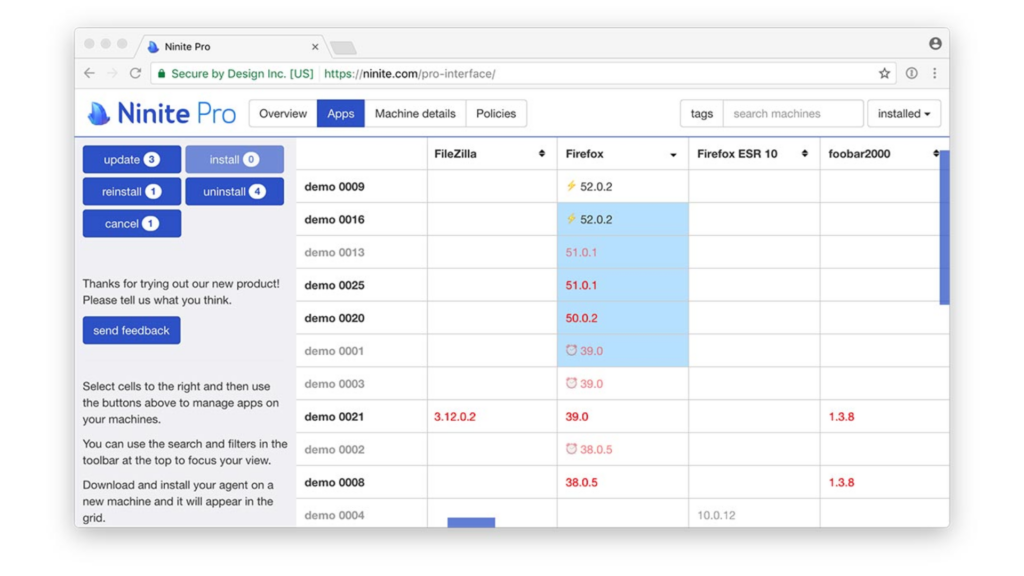
- Check the boxes next to each application you want to install on your device. Ninite provides options for individual users and even broader choices for organizations with Ninite Pro.
- Take advantage of the search function if you’re looking for a specific program; it’s quick and easy to pinpoint what you need.
- Remember that Ninite Pro is designed for managing software deployment across multiple devices within an organization. This ensures all selections are suitable for a corporate environment if needed.
How to Download and Run the Ninite Custom Installer
Installing and updating your apps can be a breeze with a simplified process like Ninite. The service takes the hassle out of managing multiple applications. This ensures you have the latest versions without extra add-ons or toolbars.
- Begin by visiting the website where you’ll find a complete list of popular applications ready for installation.
- Scroll through and check off each app you want to include in your customized installer package.
- Once you’ve made your selections, click on the ‘Get Your Ninite’ button at the bottom of the screen.
- A custom installer will then be generated based on your specific choices, containing all the apps you selected.
- Download this single installer file to your computer – it’s always up-to-date thanks to Ninite’s bots that continuously scan for new versions of software.
- Run the downloaded file; it requires no input from you beyond initial confirmation. It automatically declines any bundled software like toolbars.
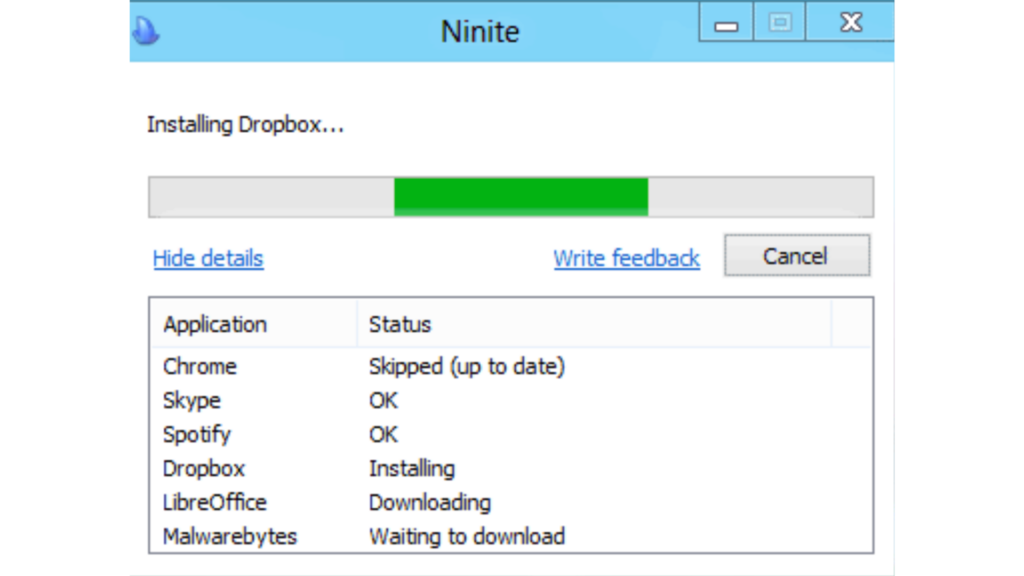
- Sit back as Ninite installs or updates all chosen apps in one go. It downloads from official sites only, which ensures security and trustworthiness.
- After completion, the installer provides a status report detailing which applications were successfully installed or updated.
Top Benefits of Using Ninite for App Installation and Updates
Ninite offers a time-efficient solution for installing and updating multiple apps. This allows users to save valuable time and effort. It provides a simple and easy-to-use platform that is trusted and secure. This makes it an ideal choice for managing software programs on the Windows operating system.
Ninite is Time-Efficient: Save Hours on Software Updates
Ninite is incredibly time-efficient. This simplifies the process of installing and updating multiple apps simultaneously. With just one click, users can avoid the hassle of individually downloading and installing each application.
This means you can save precious time by automating these tasks and be more productive with other important activities.
Why Ninite is Simple and User-Friendly for Everyone
Transitioning from the time-saving benefits of Ninite, another advantage that users appreciate is its simple and easy-to-use interface. The tool boasts a simplified and intuitive process. This makes it easy for even novice users to navigate easily.
By eliminating unnecessary steps and complex procedures, Ninite provides a hassle-free experience that saves time and minimizes frustration.
The straightforward nature of Ninite ensures that users can complete their app installations or updates in just a few clicks without having to deal with confusing menus or cluttered options.
Ninite Security: Why It’s a Trusted App Installer
Ninite is a secure and trusted platform for downloading and updating applications. It ensures secure software installation by providing reliable updates from reputable sources. Users can confidently install and update their chosen applications, knowing that they are coming from a trusted provider.
Millions of home users and Ninite Pro subscribers rely on the platform’s secure downloads, which have garnered positive reviews from respected sources like PCWORLD, THE CHRISTIAN SCIENCE MONITOR, and LIFEHACKER.
With the software, users can rest assured that they are getting safe, verified software installations that meet high-security standards.
Final Verdict: Is Ninite the Best Tool for Installing Multiple Apps?
Easily installing and updating multiple apps using Ninite simplifies the process. This saves time and effort. With its easy-to-use interface, selecting desired applications becomes a straightforward task.
Its efficiency in installing software without additional junk or toolbars eliminates unnecessary clutter on your system. Trusted by millions for its reliability, it’s an ideal solution for managing software updates smoothly.
Upgrading to Windows 10 or above ensures continuous access to the innovative features of Ninite as it keeps changing with technology advancements.
(Image Credit: Ninite)
Ninite FAQs: Everything You Need to Know in 2026
How do I install multiple apps using Ninite?
Simply select the applications you want from this website and run the installer to have them all installed at once.
Can I update all my software at once with Ninite?
Yes, by running the Ninite installer again, it will automatically update any installed apps to their latest versions.
Is Ninite safe to use for installing and updating apps?
Yes, Ninite is known for providing safe and secure downloads of popular software without any bundled junk or adware.
Do I need technical knowledge to use Ninite for app installation and updates?
No, using Ninite is straightforward and does not require any advanced technical expertise.
Are there limitations on the number of apps that can be installed or updated through Ninite?
Ninite allows users to install or update many popular applications in one go without limitations on quantity.

- Independent picks for exactly what you just read about
- Matched to your team size & needs
- Vendors don't pay for placement
Step 1 of 4
How big is your team?
We tailor recommendations to companies your size.















Related Articles
Buyers guide
Twilio Alternatives 2026: 6 Compared and What They Cost
Continue reading →
IT Management
RMM Software: 25 Tools Ranked by 1,843 Reviews
Continue reading →

Buyers guide
How To Choose The Best Freelance Platforms For 2026
Continue reading →
Best Tools
SaveFrom.net: Norton Clears It, the Ads Are the Risk
Continue reading →