

Ever seen an error message that says “file is corrupted” and wondered what it actually means? It means a file has been significantly altered or damaged in a way that makes it unworkable.
This post walks through what causes file corruption, how to recover a corrupted file, and how to prevent it from happening to your data in the first place. It’s a common enough problem that almost everyone runs into it at some point, whether that’s a document that won’t open or a photo that suddenly looks like static.
Key Takeaways
- A corrupted file is a damaged or unusable file that can result in data loss and errors.
- Causes of file corruption include power issues, software errors, system crashes, and compatibility problems.
- To recover a corrupted file, you can retrieve it from the original source, change its file format, use previous versions, utilize inbuilt app functions, or employ file repair software and data recovery tools.
- Preventing file corruption involves creating regular backups, installing reliable antivirus software, protecting against power surges and outages with surge suppressors or uninterruptible power supplies (UPS), using proper software and compatible apps, and regularly checking for and repairing bad hard drive sectors.
What Is a Corrupted File?
A corrupted file is a file that has become damaged or unusable due to errors in its data.
File corruption explained
A file gets corrupted when it changes in a bad way. This can happen to any kind of file, whether that’s a document, a photo, or a video. Those changes damage the data that makes up the file, and when that happens, you might lose some or all of your work on it.
You could also have trouble opening or using that file afterward. The causes vary: power problems, crashing software, and poorly built apps are just a few examples. Not everything is lost though — even a corrupted file can often be brought back with some effort, and in a lot of cases the fix takes far less time than people assume once you know which method to try first.
Causes of file corruption (power issues, software issues, operating system crash, compatibility issues)
Corruption can harm files in several ways. The four main causes are power problems, software errors, system crashes, and compatibility issues, and it’s worth understanding each one on its own since the right fix and the right prevention step depend on which of the four you’re actually dealing with.
- Power problems: Unexpected loss of power can damage files, including from blackouts or brownouts. Use an Uninterruptible Power Supply to keep a steady flow of power to your computer.
- Software issues: Bad coding or bugs in the software can lead to file corruption. Keep your software up-to-date to reduce this risk.
- System Crashes: If your operating system stops working while you’re using a file, you could lose it. Avoid running too many apps at once to keep your computer more stable.
- Compatibility issues: Some files may not work well with certain programs or systems. Use the right program for each file type to avoid this kind of loss.
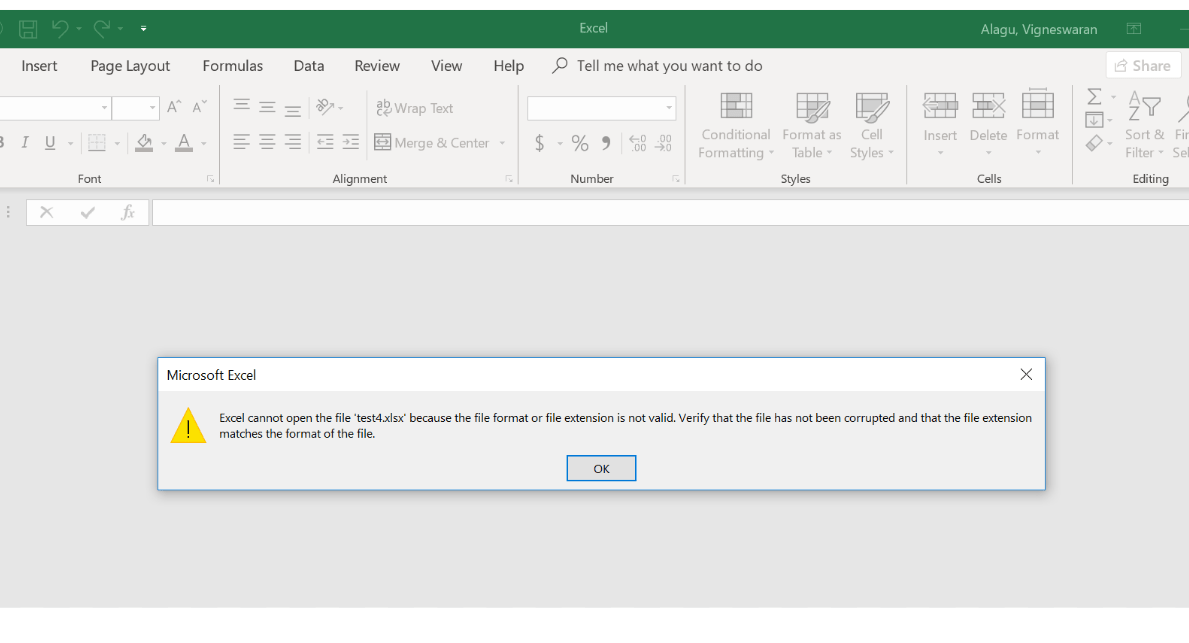
Ways to Recover a Corrupted File
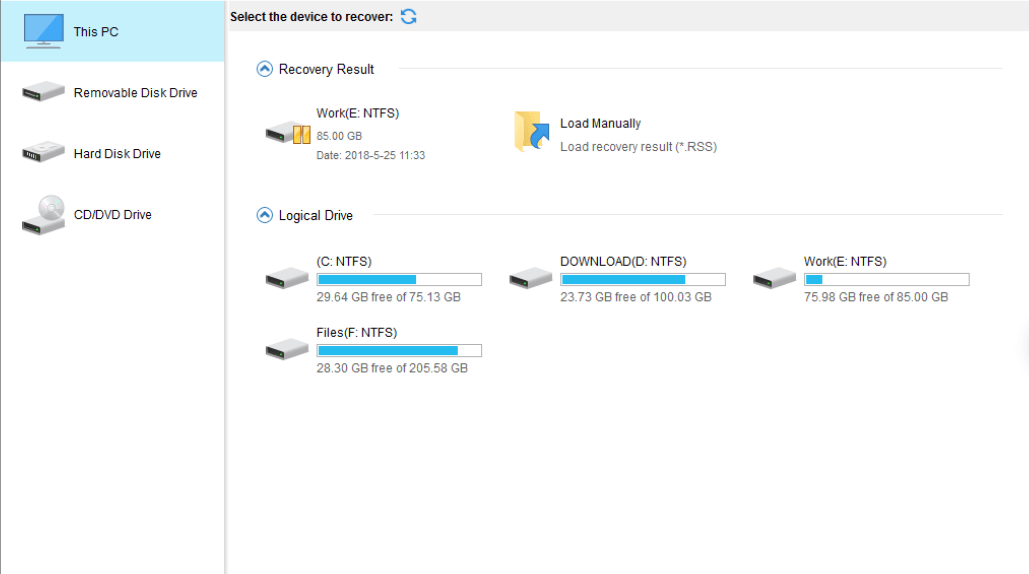
To recover a corrupted file, you can retrieve it from the original source, change its file format, use previous versions, use inbuilt app functions, or turn to file repair software and data recovery tools.
Retrieve from original source
Going back to wherever you first got the file can help. You may have saved it on your device from an email, a USB drive, or a website — it’s possible only the copy on your device got corrupted.
The original might still be fine. Track it down and save it again on your device. This tends to be one of the fastest ways to get a damaged file back in working shape, and it’s worth checking before you try anything more involved, since it costs you nothing but a few minutes of looking.
Change file format
Changing the file format can help recover a corrupted file. Sometimes the corruption happens because the file isn’t compatible with the operating system or software you’re using, in which case the data itself may be intact even though the program you’re opening it with can’t make sense of it.
Changing the format may let you open it without issues, though it can also cause some data loss or formatting changes along the way — so back up the original file before you try this.
Use previous versions
You can also try using previous versions of the file to recover it. Some operating systems and software applications offer this feature, letting you retrieve an earlier version of the file that wasn’t corrupted.
This method doesn’t always work, especially if no previous versions were saved or the corruption is severe. It’s still worth trying first, since it can save your data without resorting to more complex recovery methods or software tools.
Using the “previous versions” feature can restore your files without much hassle when it works. Just keep in mind it isn’t available for every file or every kind of corruption.
Inbuilt app functions
Inbuilt app functions can be genuinely useful for recovering corrupted files. Many applications have built-in features that repair or recover data from damaged files, restoring them to a usable state.
Results vary depending on how severe the corruption is. If the inbuilt functions don’t get you where you need to be, try a different method or consult a professional file recovery service.
File repair software and data recovery tools
File repair software and data recovery tools are useful resources for dealing with corrupted files, particularly once the simpler fixes above haven’t worked. Here are a few options worth considering, organized by what kind of problem each one is actually built to solve:
| Tool Type | Description |
|---|---|
| File Repair Software | Software designed to repair common file corruption issues by analyzing and restoring the original functionality of damaged files. |
| Data Recovery Tools | Tools that scan storage devices for remnants of corrupted files and attempt to recover as much data as possible. |
| Online Recovery Services | Web-based services that specialize in recovering corrupted files. Users can upload damaged files for recovery attempts. |
| Image Recovery Tools | Tools focused on recovering corrupted image files in various formats, such as JPEG, PNG, or RAW. |
Tips to Prevent File Corruption

Preventing file corruption mostly comes down to a handful of habits: regular backups, reliable antivirus software, surge suppressors or uninterruptible power supplies against power surges and outages, proper and compatible software, and regular checks for bad hard drive sectors. None of these are complicated on their own — the value comes from doing all of them consistently rather than treating any single one as a complete fix.
Create backups
Creating backups is one of the simplest ways to avoid losing important files to corruption. Backing up your files means making copies of them and storing those copies in a separate location.
That way, if the original file becomes corrupted or inaccessible, you can just retrieve the backup copy instead.
There are a few ways to create backups depending on your preferences and needs. One option is external storage — USB drives or external hard drives — to save copies of your files.
Another is cloud storage, which lets you upload and store your files online.
Backing up regularly means that even if a file gets corrupted or lost, you’ll still have a copy saved elsewhere. That’s real peace of mind: your data stays protected and recoverable even if something goes wrong with the original file.
Install antivirus software
Installing antivirus software on your computer helps protect your files from corruption. It detects and blocks malicious files or viruses that can cause corruption in the first place.
It scans your system for potential threats and removes them before they can harm your files. Update the antivirus software regularly and run system scans so your files stay protected against harmful elements.
Protect from power surges and outages
Investing in surge suppressors and uninterruptible power supplies (UPS) protects your files from power surges and outages. These devices regulate the electrical current flowing into your computer or storage device, preventing the sudden voltage spikes that corrupt files.
During a power outage, a UPS supplies backup power, giving you enough time to save your work and shut your system down safely. These preventive measures shield your files from the damaging effects of power fluctuations.
Use proper software and compatible apps
Using the right software and compatible apps is essential for preventing file corruption. When you install software on your computer, make sure it comes from a trusted source and is built specifically for your operating system.
Compatible apps are programs known to work well together without causing conflicts or compatibility issues. That keeps the files you create or open intact and free from corruption.
Keeping your software updated with the latest patches also helps close off vulnerabilities that could otherwise lead to file corruption.
Regularly check for and repair bad hard drive sectors
Checking for and repairing bad sectors on your hard drive regularly helps prevent file corruption. Bad sectors are areas on the drive that have become damaged or corrupted, and they can lead to data loss or further file corruption.
Running regular disk checks and repairs lets you catch and fix these bad sectors before they cause real problems, which helps protect the integrity of your files and head off potential data loss down the line.
Use reliable disk diagnostic tools or software recommended by experts to scan your hard drive for bad sectors and make repairs as needed.
Conclusion
A corrupted file is, at its core, a damaged file that can cause data loss and errors. To prevent them, create backups, install antivirus software, protect against power issues, use compatible apps, and check your hard drives regularly.
Taking these steps protects your files and keeps their integrity intact. None of them take much time to set up, and the payoff shows up the one time a file does get damaged and you’re not starting from zero.
Frequently Asked Questions
What is a corrupted file?
A corrupted file is a file that has become damaged or unusable, often due to errors or issues during the saving, transferring, or storage process.
How can I tell if a file is corrupted?
You may be able to tell if a file is corrupted if it doesn’t open or display correctly, shows error messages when trying to access it, or causes your device to freeze or crash.
Can I fix a corrupted file myself?
In some cases, you may be able to repair a corrupted file by using software designed for that purpose. However, it’s not always possible and depends on the extent of the corruption.
How can I prevent files from getting corrupted?
To prevent files from getting corrupted, make sure your devices have reliable power sources and are protected from physical damage. Regularly back up your files and use reputable antivirus software to protect against malware.
What should I do if I encounter a corrupted file?
If you encounter a corrupted file, try opening it on another device or with different software first. If that doesn’t work, restore the file from your backup (if available) or seek professional help from data recovery services if the information is important and irreplaceable.

- Independent picks for exactly what you just read about
- Matched to your team size & needs
- Vendors don't pay for placement
Step 1 of 4
How big is your team?
We tailor recommendations to companies your size.















Related Articles
Buyers guide
Twilio Alternatives 2026: 6 Compared and What They Cost
Continue reading →
IT Management
RMM Software: 25 Tools Ranked by 1,843 Reviews
Continue reading →

Buyers guide
How To Choose The Best Freelance Platforms For 2026
Continue reading →

Best Tools
SaveFrom.net: Norton Clears It, the Ads Are the Risk
Continue reading →