
Marking up digital documents, images, and project files trips up a lot of people. Getting notes, highlights, and feedback onto a file cleanly, without switching between five different apps, is harder than it should be.
This guide covers the top 8 annotation tools, with a look at their features, pros, cons, and pricing, so you can pick the one that fits your work, whether that’s document markup, project management, PDF annotation, or image labeling.
Key Takeaways
- Annotation tools are software applications that allow users to mark up and annotate various types of digital documents, images, or files.
- The top 8 annotation tools include ClickUp, Filestage, Prodigy, Annotate, PDF Annotator, Drawboard Projects, Doccano, and InK2Go.
- These tools offer features such as project management capabilities, document markup options, collaborative annotation features for teamwork,
- Factors like pricing plans and specific requirements should be considered when choosing the best annotation tool for your needs.
What is an Annotation Tool?
Annotation tools are software applications that allow users to mark up, edit, and annotate various types of documents, images, or files digitally.
Definition
An annotation tool is a kind of software. It lets you add notes to text or images. You can use it on digital files like photos, videos, or documents. Some tools let you draw or write by hand, marking up a page much like you would with a pen on paper.
Others work with typed text only, letting you type comments instead of drawing them. For example, nTask and Drawboard are popular ones for managing projects and marking up PDFs. Annotation tools help make work clearer for others to understand, since a note attached directly to the relevant line or image removes any guesswork about what you meant.
Examples
There are many types of annotation tools that people use today. Here are a few examples:
- ClickUp: This tool is great for project management.
- Filestage: This tool has pricing plans and is used to review and approve electronic media.
- Prodigy: A tool often used by machine learning pros.
- Annotate: Popular for its text and image annotation features.
- PDF Annotator: People use this one to mark up or add notes to PDF files.
- Drawboard Projects: This is key for annotating PDF documents.
- Doccano: A top choice if you need a text annotation tool for data labeling tasks.
- Ink2Go: A solid choice for Windows users needing photo annotation software with great editing tools.
Types of annotations
There are many types of annotations. These can help you make notes and mark your files. Here’s a list of some types:
| Type | Description |
|---|---|
| Text Annotation | This kind lets you add words to your work. |
| Image Annotation | With this type, you can draw or write on pictures. |
| Document Markup | This one helps you highlight or underline parts in a document. |
| Project Management | You can use this type when working with a team on big tasks. |
| PDF Annotation | This kind lets you add notes to PDF files. |
| Image Labeling | With this type, you can put names on parts of a picture. |
| Content-aware Resizing | This one helps the important parts stay clear when the size changes. |
Top 8 Annotation Tools
Here are the top 8 annotation tools to consider:
ClickUp
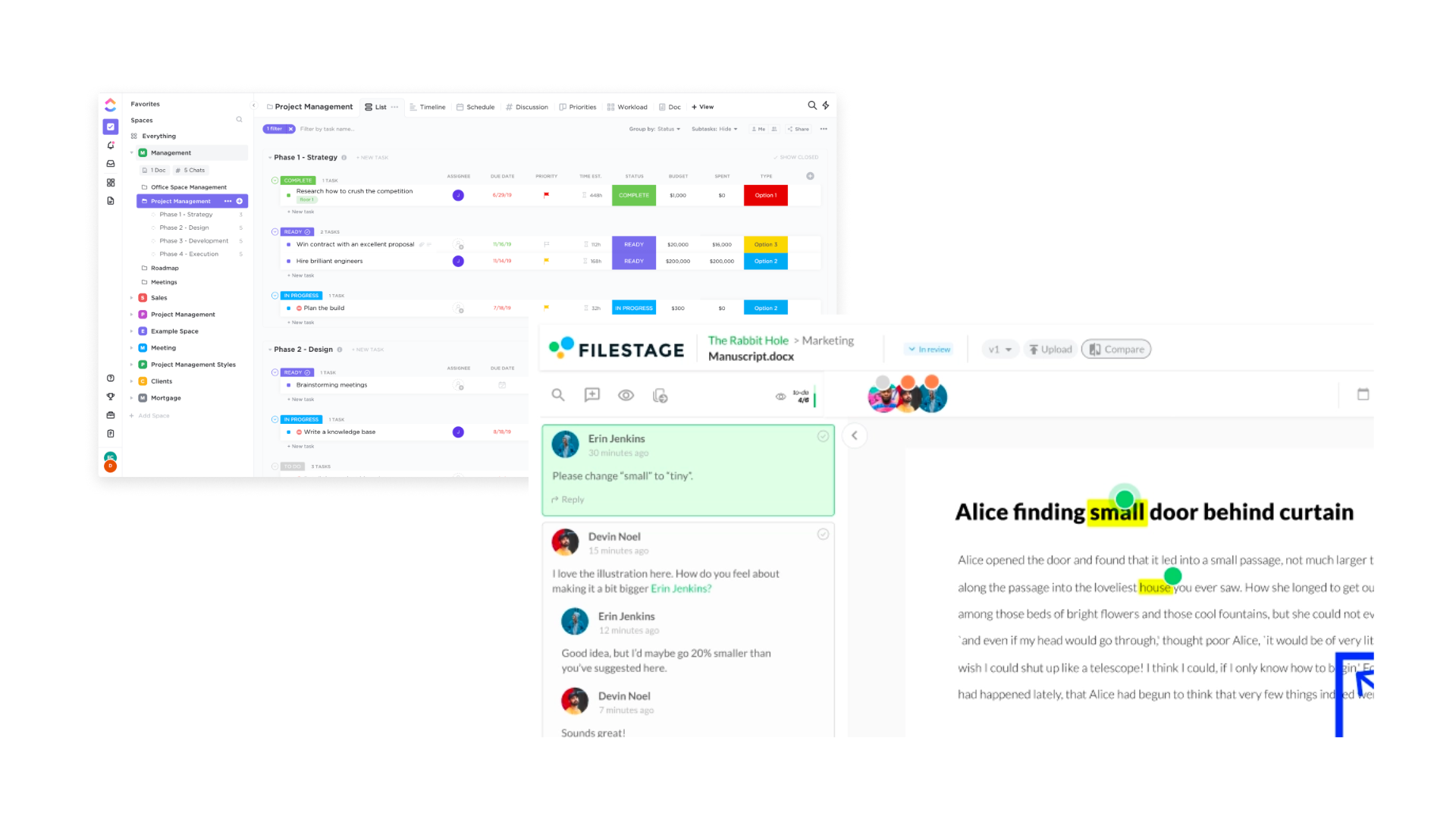
ClickUp covers project management, document markup, and PDF annotation in one place, which makes it a reasonable starting point if you don’t want to juggle several separate tools. You can edit and annotate documents, collaborate with others on projects, and share your annotated files without much friction.
It also provides image annotation capabilities, allowing you to label and recognize images using machine-learning technology. ClickUp is compatible with Windows software and offers content-aware resizing for automatic image annotation.
On pricing, ClickUp offers plans built around different needs and budgets. Overall, it’s a versatile tool for streamlining the annotation process while still giving you strong editing features to work with.
Filestage
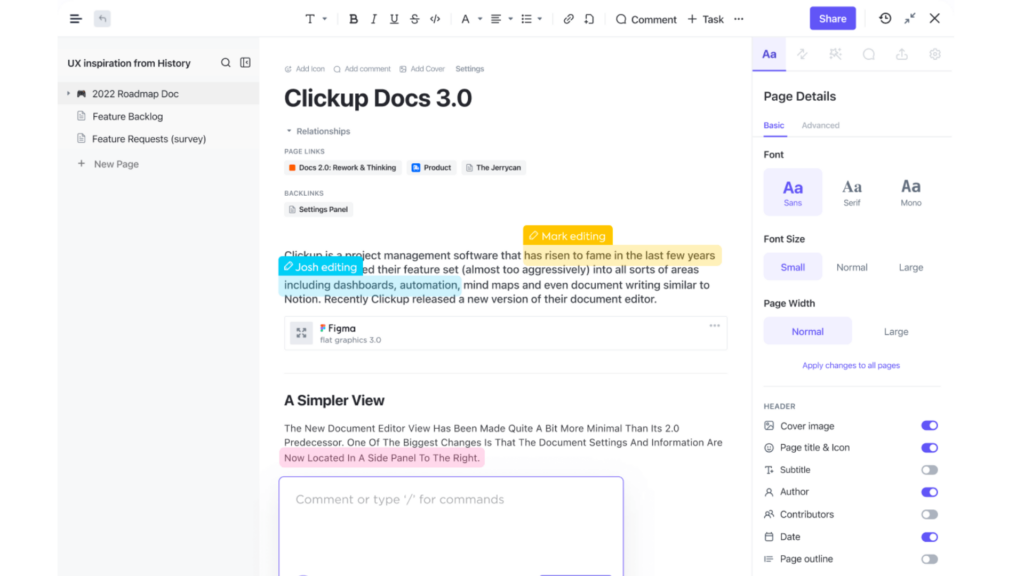
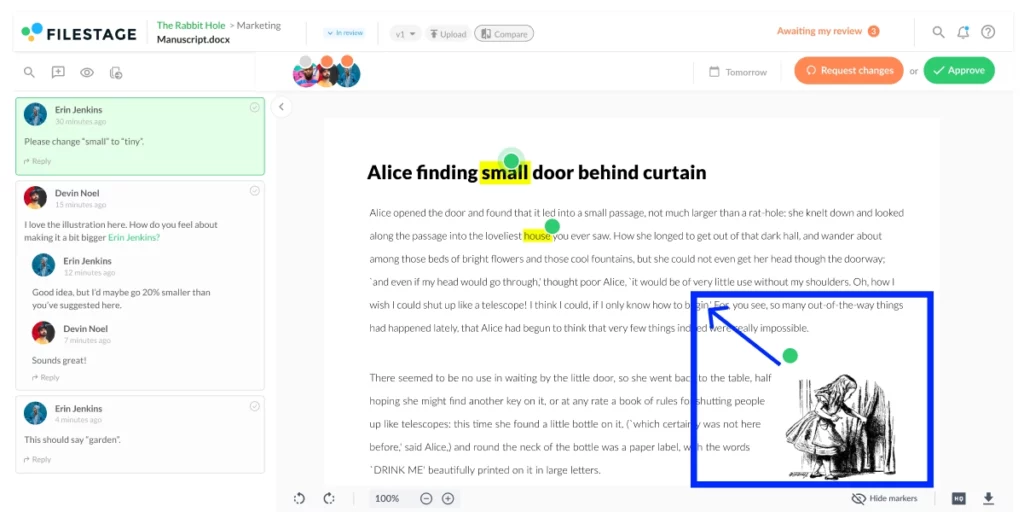
Filestage handles document markup and project management. You can annotate PDF documents and work with others on editing tasks directly inside the tool, rather than emailing files back and forth for comments.
Its sharing capabilities make it convenient to share files with your team members. Filestage also allows image annotation and labeling, making it useful for image recognition projects where several reviewers need to weigh in on the same file.
When choosing an annotation tool, check Filestage’s features and pricing plans to see if it fits your needs for text and image annotation tasks.
Prodigy
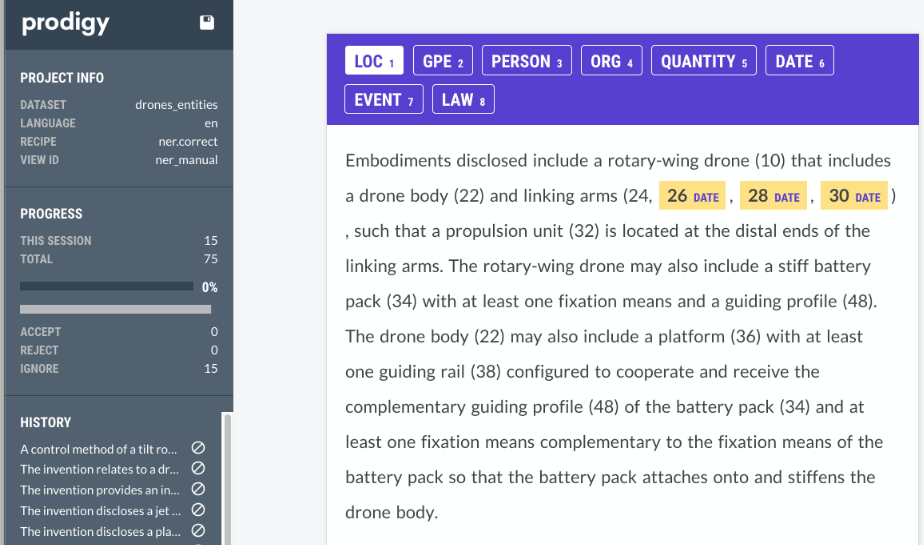
Prodigy is built around machine learning and machine learning capabilities with advanced text annotation features. It lets you label and annotate large datasets efficiently.
It also offers content-aware resizing, which automatically adjusts images to fit within a specified space without distorting the content. Prodigy fits projects that need image recognition and data labeling work.
The pricing details for Prodigy are not mentioned in the article’s outlines, so it may be worth exploring further to determine if it fits your budget and requirements.
Annotate
Annotate lets you mark and highlight important information in your documents, with features such as screen annotation, manual annotation, and collaborative annotation.
With Annotate, you can add comments, draw shapes, and underline text to give clear feedback on any document or image. The pricing details aren’t mentioned for this tool in the article.
Still, if you’re looking for an efficient way to annotate your files and collaborate with others, Annotate could be a great option for you.
PDF Annotator
PDF Annotator specializes in annotating PDF documents, letting you highlight, underline, and add comments to files. You can mark up important sections of a document or make notes for future reference, so nothing important gets lost when you come back to the file later.
This tool is particularly useful for students, researchers, and professionals who need to collaborate on PDF files or review documents efficiently. PDF Annotator also offers a variety of editing features like text markup and content-aware resizing.
It’s compatible with Windows software and provides easy sharing capabilities so you can share annotated documents with others. It streamlines the annotation process for PDF files and helps teams or individuals working on digital documents keep their edits organized in one place.
Drawboard Projects
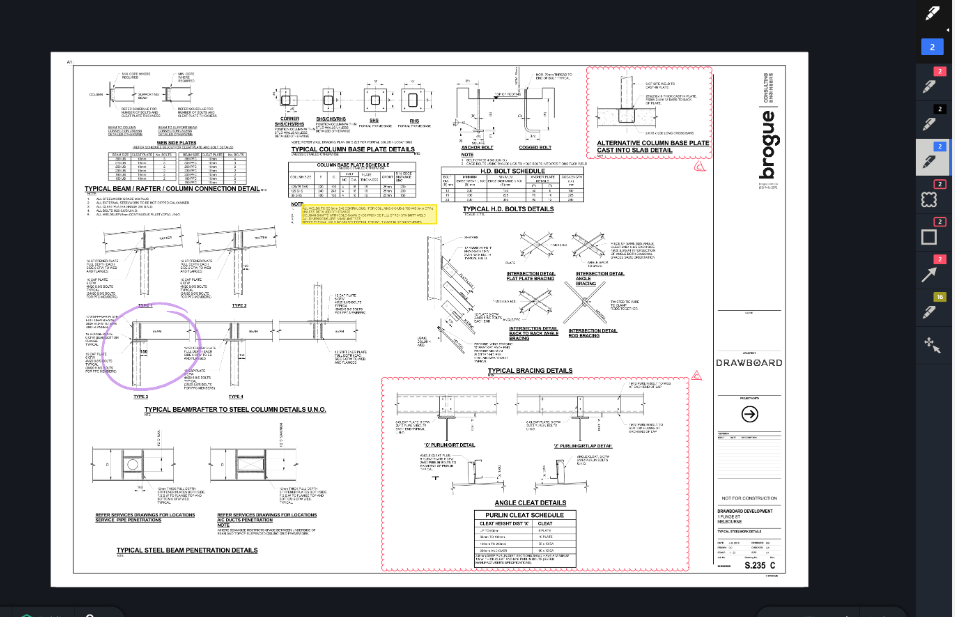
Drawboard Projects is an annotation and markup tool built for project management. It lets teams collaborate and mark up documents, PDFs, and images in a streamlined way.
With Drawboard Projects, you can annotate documents by highlighting text, adding comments, and drawing shapes. The tool also offers advanced editing features like content-aware resizing and automatic image annotation.
One advantage of Drawboard Projects is its compatibility with Windows software, which makes it a solid choice for users on a Windows operating system.
Drawboard Projects also offers sharing capabilities, so team members can share annotated files easily instead of passing separate copies of the same document back and forth.
On pricing, detailed information about the cost of using Drawboard Projects is not available in the provided outlines or important facts section. However, the article mentions that Filestage, another annotation tool, offers different pricing plans, which suggests Drawboard Projects might have similar pricing options.
Doccano
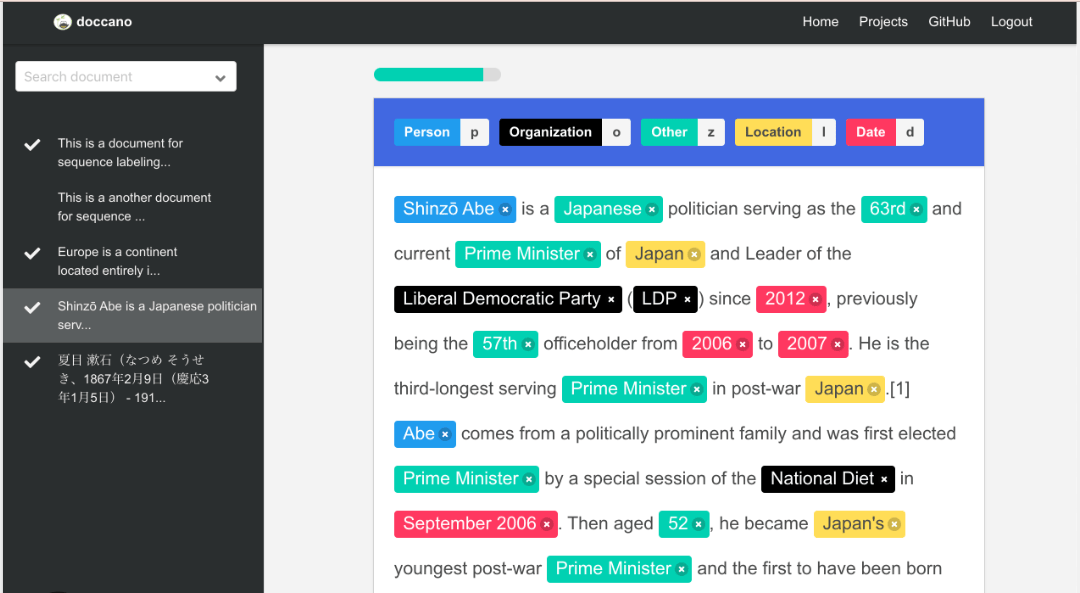
Doccano helps users label and annotate text data for machine learning projects. Its interface lets you mark up documents and add labels to specific sections of text without much setup.
It also provides collaborative annotation features, letting multiple users work together on the same project in real time. Doccano doesn’t offer advanced editing or sharing capabilities like some other tools, but it excels in simplicity and ease of use.
InK2Go
InK2Go offers a range of features for digital annotation, particularly useful for project management and document markup tasks. You can annotate PDF documents, add text to images, and collaborate with others in real time.
The software also provides editing features like content-aware resizing and automatic image annotation. On pricing, InK2Go offers affordable plans that cater to different needs and budgets.
For those looking for a reliable annotation tool with project management capabilities, InK2Go is worth considering.
Key Features of Annotation Tools
Annotation tools typically offer key features such as screen annotation, manual annotation, and collaborative annotation to facilitate marking up documents and images. Which of these matters most to you depends on whether you work alone or need several people reviewing the same file.
Screen Annotation
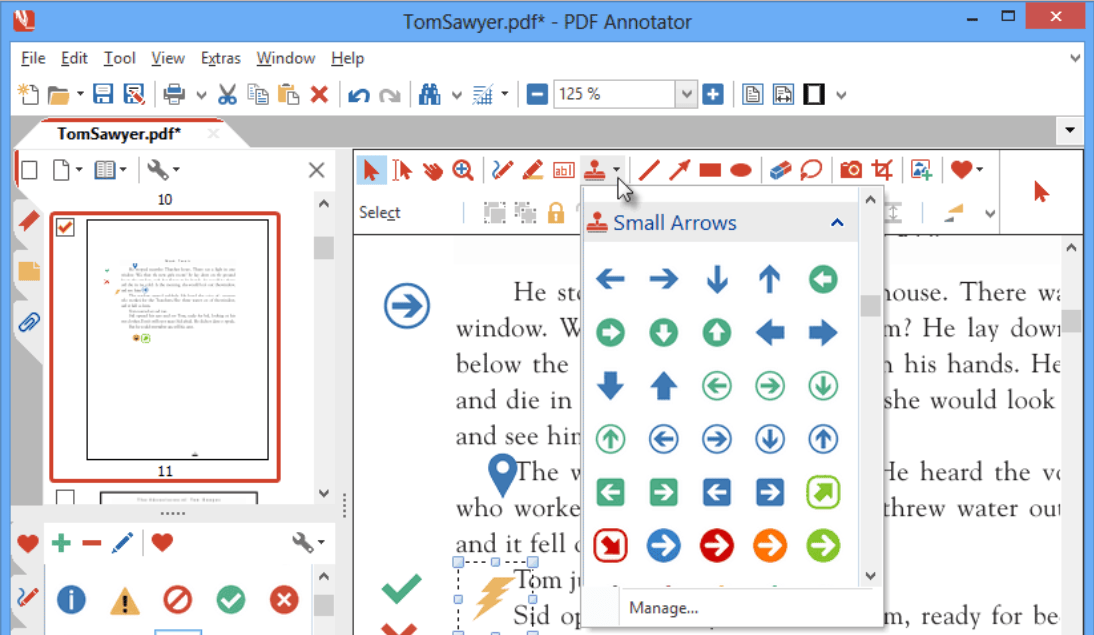
Screen Annotation lets users mark up and highlight content directly on their computer screens. You can draw shapes, underline text, add arrows, and write notes on any application or webpage.
This feature is especially useful for giving presentations, providing feedback on designs or documents, and collaborating with team members in real time. Some popular annotation tools like Drawboard Projects and InK2Go offer robust screen annotation capabilities that make it easy to annotate digital content with precision.
Screen annotation lets users communicate ideas visually and effectively without the need for printing or physical notepads.
Manual Annotation
Manual annotation lets users manually mark and highlight specific areas of a document or image. This process involves selecting text, images, or other elements and adding comments, drawings, or labels directly on them.
Manual annotation gives users full control over the annotations and lets them provide detailed feedback or make precise edits. It’s especially useful for collaborative projects where multiple team members need to review and annotate the same content.
With manual annotation, users can communicate their thoughts and suggestions clearly and concisely.
Collaborative Annotation
Collaborative annotation is a key feature of many annotation tools. It lets multiple users work together on annotating documents, images, or other types of content in real time.
With collaborative annotation, team members can add comments, highlight text, draw shapes, and edit simultaneously. This supports communication and collaboration among team members working on the same project or document.
Some annotation tools that offer collaborative features include Prodigy, Doccano, and Drawboard Projects. These tools let teams annotate and give feedback together, which makes it easier to collaborate on projects and improve overall productivity.
Pros and Cons of Using Annotation Tools
Annotation tools offer real benefits, such as efficient collaboration, improved communication, and streamlined document management. They also have drawbacks like limited functionality and potential compatibility issues, which are worth weighing before you commit to one.
To learn more about the pros and cons of using annotation tools, keep reading below.
Pros
Annotation tools bring several benefits that can help productivity and collaboration. First, these tools allow for efficient document markup and editing, making it easier to highlight important information and make changes as needed.
Annotation tools often include sharing capabilities, letting users collaborate with others by sharing annotated documents. This supports real-time feedback and streamlined communication within teams.
Annotation tools also support image annotation and labeling, which is especially useful for tasks such as image recognition and machine learning. Overall, using annotation tools can improve workflow efficiency and support better communication among team members.
Cons
Annotation tools offer many benefits, but there are drawbacks to weigh too. Not all annotation tools are compatible with different file types or operating systems.
This can limit usability and accessibility for certain users. Some annotation tools may also have a steep learning curve, requiring users to invest time in understanding how to use them effectively.
Depending on the complexity and features offered, certain annotation tools may come with a higher price tag, which could be a deterrent for individuals or organizations with limited budgets.
Pricing of Annotation Tools
Compare the features and pricing of these annotation tools to help you make an informed decision, and see what factors to weigh when choosing the right tool for your needs.
Comparison of features and pricing
Here’s a quick comparison of the top 8 annotation tools covered in this article. nTask is a strong pick for project management, while Drawboard excels at PDF annotation.
Adobe Acrobat Pro DC and Markup Hero are also worth a look. Filestage offers different pricing plans tailored to different needs. For image annotation, InK2Go and Annotate offer solid editing features at affordable prices.
These tools provide various markup options, sharing capabilities, and text annotation features to meet different requirements. Consider these factors when choosing an annotation tool: document markup, image labeling, collaborative annotation, machine learning capabilities, and content-aware resizing for images.
Factors to consider when choosing an annotation tool
When choosing an annotation tool, there are several important factors to consider. These factors include:
| Factor | Description |
|---|---|
| Features | Consider the specific annotation capabilities the tool offers, such as screen annotation, manual annotation, and collaborative annotation. |
| Ease of Use | Assess the tool’s user-friendliness and ease of navigation, looking for an intuitive interface and straightforward workflows. |
| Compatibility | Ensure the tool is compatible with your operating system and devices, checking if it works on platforms you use. |
| Integration | Consider whether the tool can integrate with your existing software or platforms, streamlining your workflow. |
| Pricing | Compare pricing plans, including any additional costs for advanced features or upgrades, to determine if they fit your budget. |
| User Reviews | Read user reviews to gain insights into the tool’s reliability, performance, and the quality of customer support. |
| Security | Evaluate the tool’s approach to data security and privacy, ensuring it offers encryption and secure storage, and complies with relevant regulations. |
| Customer Support | Assess the availability and responsiveness of customer support options provided by the tool’s provider. |
Conclusion
The top 8 annotation tools covered here, ClickUp, Filestage, Prodigy, Annotate, PDF Annotator, Drawboard Projects, Doccano, and InK2Go, offer a range of features for different needs, from document markup and project management to PDF annotation, image labeling, and text annotation.
Each tool has its own pros and cons, so weigh pricing and your specific requirements carefully when choosing the best annotation tool for your needs. Explore these tools’ capabilities to strengthen collaboration and streamline your annotation process going forward.
(Image Source: Collection, credited above.)
Frequently Asked Questions
What are annotation tools?
Annotation tools are software or applications that allow users to add notes, comments, or highlights to digital documents or images.
What features should I look for in an annotation tool?
Some important features to consider when choosing an annotation tool include the ability to highlight text, add comments and notes, draw shapes or arrows, import/export files in various formats, and collaborate with others in real-time.
What are the pros of using annotation tools?
Using annotation tools can enhance productivity by making it easy to mark up and review documents digitally without printing them out. These tools also facilitate collaboration among multiple users by allowing them to annotate documents simultaneously.
Are there any downsides or cons of using annotation tools?
One potential downside of using annotation tools is the learning curve associated with mastering the specific software interface.
How much do annotation tools cost?
The pricing for annotation tools varies depending on factors such as the provider’s pricing model (subscription-based or one-time payment), feature set offered (basic vs advanced), and whether it is intended for individual use or enterprise-level collaboration needs. It’s best to compare different options and their respective pricing plans for accurate information regarding costs.
Compare alternatives to the tools in this post

- Independent picks for exactly what you just read about
- Matched to your team size & needs
- Vendors don't pay for placement
Step 1 of 4
How big is your team?
We tailor recommendations to companies your size.















Related Articles

Buyers guide
How To Choose The Best Online Learning Platform For 2026
Continue reading →

Education Software
Best LMS Software in 2026: Complete Guide for Every Team Size
Continue reading →

Education Software
Legends of Learning: 2,000+ K-8 Games, Free Teacher Plan
Continue reading →
Education Software
ThinkWave Educator 2026 Review: Gradebook, School Management Software, and Support Overview
Continue reading →