
Screencastify: Mastering The Art Of Screen Recording And Interactive Video Editing

Screencastify is an online platform for screen recording and video editing, and it runs on a user-friendly interface. This browser extension is used by over 17 million video creators, including educators and professionals from many fields, to capture their screens and turn them into video content.
It is designed to work with Chromebooks and other devices, and it suits education as well as business settings where clear communication is important.
Screencastify gives you a straightforward way to create high-quality videos without advanced technical skills. It links with Google Drive, which makes it easy to store and manage your video footage.
Its compatibility also extends to sharing platforms such as YouTube, which simplifies distribution for creators who want to reach wider audiences. Because recordings are saved to Google Drive and can be shared to YouTube, the path from capturing a screen to publishing it stays short. The rest of this article looks at how Screencastify supports content creation across different fields, beginning with the difference it makes in teaching and moving on to its editing and integration features.
Benefits of Using Screencastify to Create Professional-Quality Videos
Screencastify offers a user-friendly interface, so creators of all skill levels can produce professional-quality videos. Its integration with Google Drive and its range of uses across different video needs make it a useful tool in any digital toolkit.
Ease of use
Screencastify starts with a user-friendly interface that records your screen in a few clicks. Whether you are a teacher creating instructional videos or an entrepreneur preparing product demos, simplicity sits at the core of the tool.
You will find it intuitive from your very first video. With built-in sharing, sending finished videos to colleagues or students is straightforward.
Screencastify does not require high-end devices; it is fully compatible with Chromebooks, which makes it an accessible choice for schools and individuals alike. Over 17 million videos have been made with the platform, and that number reflects its convenience and adaptability.
You can start creating without extensive technical know-how. Rather than spending time learning software, you can focus on delivering content that holds your audience’s attention and teaches them, which is the point for both classroom and workplace videos.
Versatility for various video creators
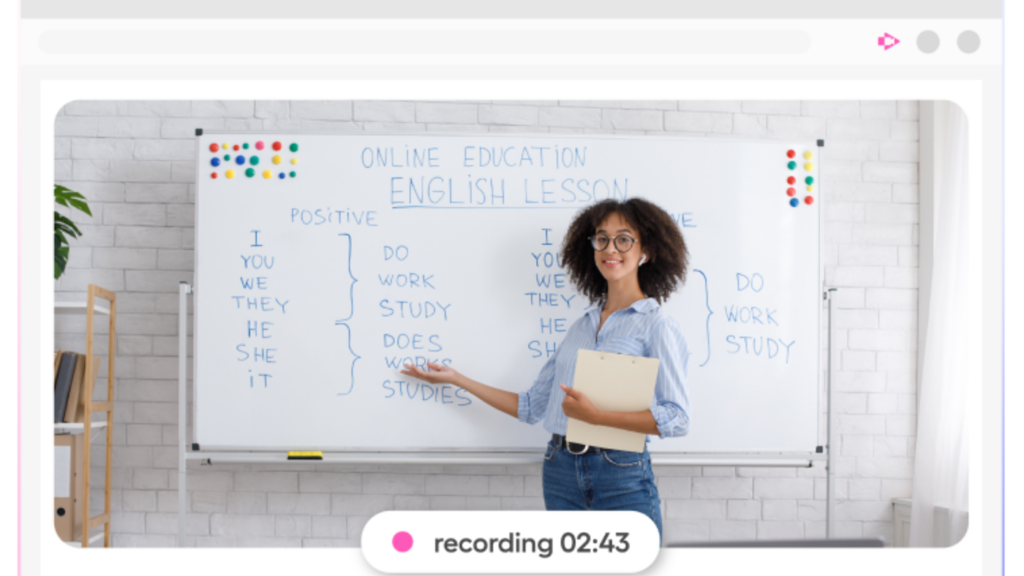
Screencastify adapts to the diverse needs of video creators across industries. Educators build engaging tutorial videos that make complex subjects clearer, while marketers create presentations to showcase their latest campaigns.
Engineers break down complicated processes into step-by-step engineering tutorials, so a viewer can follow along at their own pace, and customer support teams produce troubleshooting guides that help resolve issues quickly and effectively instead of trading long written instructions.
This video creation tool goes further than that; legal professionals can use it for detailed legal documentation, where accuracy and compliance matter. Whether you are giving feedback through a personalized walkthrough or flipping a classroom with educational content, Screencastify gives you the means to communicate your message clearly in any context.
Integration with Google Drive
Screencastify integrates with Google Drive, giving you a convenient way to store and share your video creations. The integration lets you access your recordings from any device with internet access, so you can collaborate and keep your videos in the cloud.
As part of the Google Extension Starter Kit, Screencastify’s compatibility with Google Drive keeps your video editing process tied to familiar tools.
The integration also makes it easy to share and distribute your video content through a direct link to your Google Drive files. With this feature, you can collaborate with colleagues or students by giving them access to view or edit specific videos, without extra downloads or file transfers.
How to Use Screencastify for Educators
To use Screencastify for teaching, educators can apply the platform to walkthroughs, feedback, tutorials, flipped learning, troubleshooting, and explainers. The tool works on Chrome OS, Chromebooks, and Chromeboxes, which makes it a good fit for educational institutions. Screencastify is also recommended for creating videos and animations, presentations and slideshows, and interactive video applications for teaching. It offers easy sharing of video creations, so teachers can distribute instructional materials conveniently. With a privacy rating of 82% pass, teachers and students can use the tool with confidence in its clear privacy policies and security practices.
Screencastify Integration with Educational Tools
Screencastify integrates with educational tools, which makes it a flexible asset for educators. It connects with learning management systems, feedback tools, and other educational technology platforms commonly used in classrooms.
Through its Google integration, Screencastify allows easy sharing of video content on Google Drive and YouTube. This makes it simple to add personalized video tutorials into online learning environments, creating useful resources for students both inside and outside the classroom.
Educators can use Screencastify to support their teaching by pairing it with the various educational platforms they already run. The integration helps teachers apply flipped classroom techniques, where students watch a recorded lesson before class, give useful feedback on student work through short recorded walkthroughs, and build engaging instructional materials suited to their students’ needs.

Screencastify’s Video Editor
After its integration with educational tools, the next thing to look at is Screencastify’s video editor. This feature matters for content creators because it offers an intuitive online video editing platform that simplifies the process from start to finish.
With this tool, users can edit their screen recordings and videos in the same place they recorded them, without switching between different applications or software or exporting files back and forth.
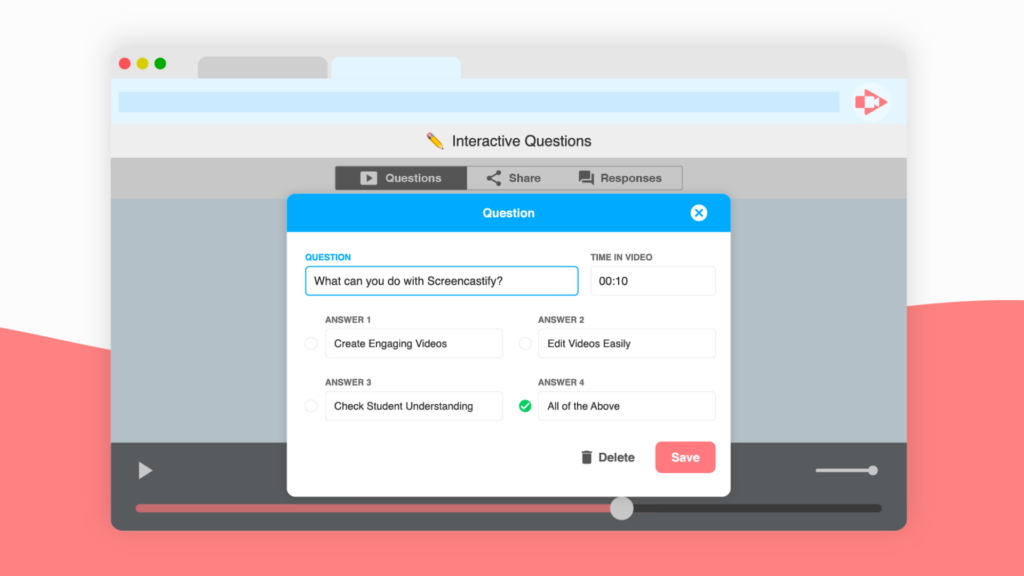
The video editor lets users improve their content by adding annotations, text overlays, and other interactive elements directly onto their videos. It also allows trimming and cutting of footage for a polished final product.
The multiplatform sharing feature means edited videos can be distributed across various channels and platforms in just a few clicks. These capabilities make Screencastify’s video editor a valuable asset for anyone who wants to create compelling, professional-quality video content.
Conclusion
Screen recording and video editing with Screencastify open up many options for creating engaging multimedia content. Users from many backgrounds, including educators, marketers, and engineers, benefit from its intuitive interface and its integration with Google Drive.
With Screencastify’s range of tools, you can put your creativity to work and improve your digital storytelling. With millions of people already using it across eight countries, it is a good time to join the video creators who rely on this platform.
(Image Credit: Screencastify)
For teams weighing screen recording options, Screencastify remains a practical starting point across teaching and business work alike.
Frequently Asked Questions
How do I start a screen recording with Screencastify?
You can begin a screen recording by clicking on the Screencastify extension in your browser and selecting the “Record” option.
Can I edit my recordings within Screencastify?
No, you’ll need to use an external video editing software to edit your recordings made with Screencastify.
Is it possible to add annotations or highlights during the recording process in Screencastify?
Yes, you can easily add annotations and highlights while doing a screen recording using the built-in tools within Screencastify.
What formats can be used when saving videos recorded through Screencastify?
Screencastify allows you to save recorded videos in various formats such as MP4, animated GIF, and MP4 with audio-only options.
Can I schedule a time for my Screen recordings using Screencastify?
Yes, with the Paid version of screentastic you have an optionto choose date & time for your planned automatic Recording session.

- Independent picks for exactly what you just read about
- Matched to your team size & needs
- Vendors don't pay for placement
Step 1 of 4
How big is your team?
We tailor recommendations to companies your size.















Related Articles
Buyers guide
How To Choose The Best Online Learning Platform For 2026
Continue reading →
Education Software
Best LMS Software in 2026: Complete Guide for Every Team Size
Continue reading →
Buyers guide
How To Choose The Best Assessment Software For 2026
Continue reading →
Buyers guide
How To Choose The Best Online Course Providers For 2026
Continue reading →