
Using Pear Deck for Interactive Classroom Presentations: A Step-by-Step Guide


Pear Deck turns ordinary lesson slides into interactive presentations that support active learning and raise student participation. As an education technology tool, it lets teachers build slides that carry formative assessments such as quizzes, drawings, and draggable activities.
Those activities pull students into the lesson and give teachers real-time feedback, so every student has a way to respond.
Because Pear Deck works with Google Classroom and other platforms, teachers can add it to the tools and workflows they already use without changing how they run their class. Its partnerships with education organizations also bring ready-made subject content into the classroom, so teachers do not have to build every lesson from scratch.
The simple interface gives teachers room to adjust their instruction and meet different student needs during the lesson, while keeping the teaching itself, not the software, at the center of the class.
Step-by-Step Guide to Using Pear Deck
Start by creating a Pear Deck account and adding questions to your slides so students have something to respond to. Once the slides are ready, present the deck to run interactive discussions and collect student responses as the lesson happens, rather than waiting until the end to check what students understood.
Creating Your Pear Deck Account
Setting up your Pear Deck account is the first step toward presentations that ask students to take part. Students answer from their own devices, which gets more of them involved in the lesson.
- Go to the Pear Deck website and click the “Teachers, Sign Up Free” button to get started in a few clicks.
- Choose whether to sign up through Google or Microsoft so the tool connects to the classroom account you already use.
- Enter your email address and pick a strong password to protect your educator profile, since account security matters for digital classrooms.
- Verify your account by clicking the confirmation link sent to your email.
- Fill in basic details about yourself and your teaching context so the platform fits your subject and grade level.
- Opt in to Pear Deck’s training resources, such as help videos or webinars, which shorten the learning curve for new users.
- Install the Pear Deck add-on or extension for Google Slides or Microsoft PowerPoint so you can add questions to slides directly.
Integrating Questions into Slides
Adding questions to your slides turns a standard presentation into an interactive learning experience. Pear Deck lets you drop these question types in without rebuilding the deck.
- Start with your usual slide deck in Google Slides or PowerPoint.
- Open the Pear Deck sidebar to reach its interactive features.
- Pick the question type you want from the six Pear Deck offers: draggable, drawing, multiple choice, number, text, or web slide.
- Add a multiple-choice question where you want students to pick an answer from set options.
- Add a text slide for open-ended questions, which let students write out their own thoughts.
- Add a draggable question for matching or sorting tasks where students move objects on the slide.
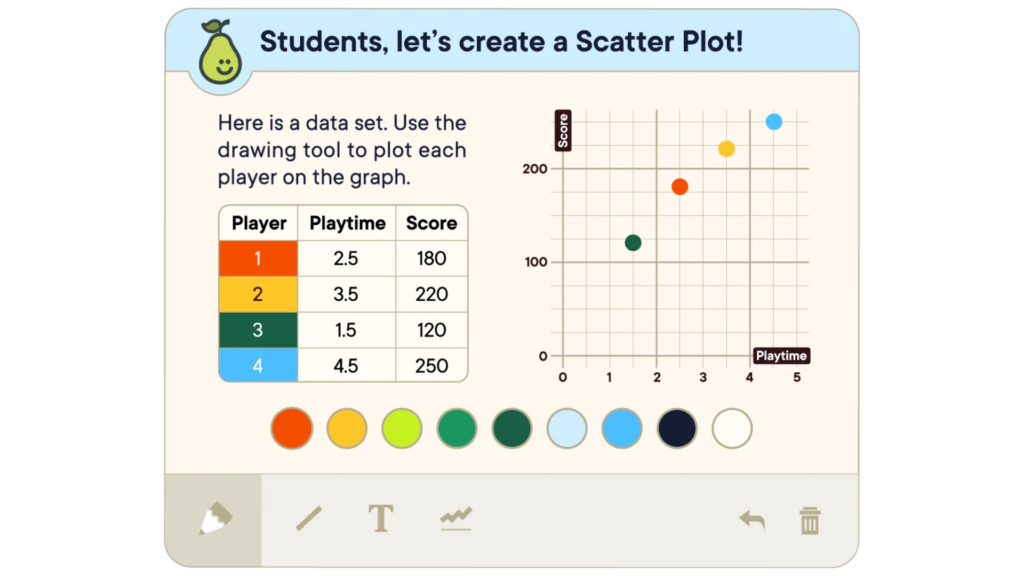
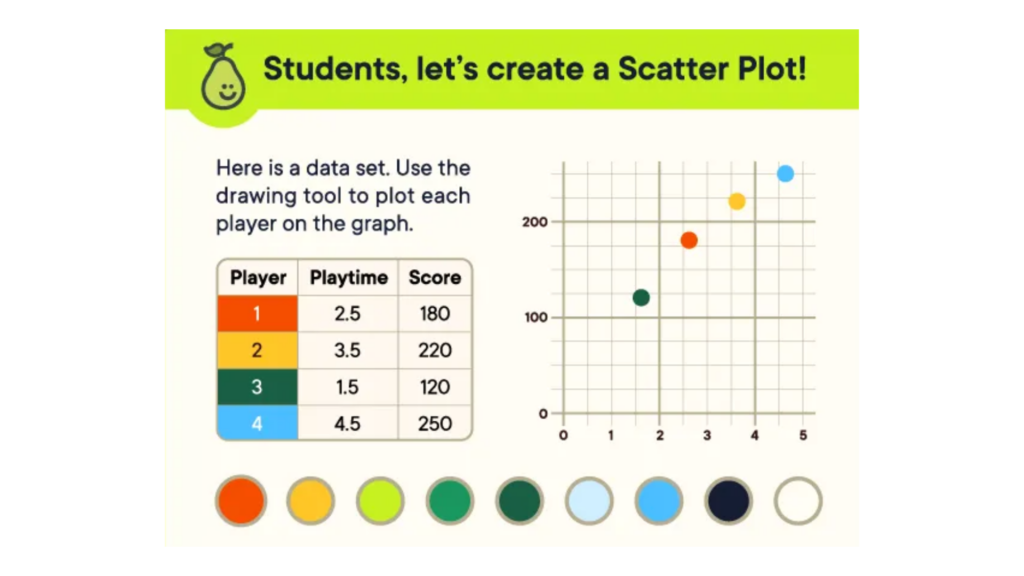
- Use the drawing tool when you want students to sketch a concept or mark part of an image.
- Use number slides for math questions or any time you need a precise numerical answer.
- Add web slides to bring outside content into your presentation.
Presenting a Pear Deck
Once your questions are in place, present the deck and put students to work. Here is a step-by-step guide to presenting a Pear Deck:
- Open your prepared presentation in Pear Deck and click “Start Lesson” to launch the slides on each student’s device.
- As you move through each slide, ask students to answer questions, work with the content, or give feedback using the interactive elements on the slide.
- Watch student responses come in and use them to give immediate feedback or to slow down or speed up the lesson based on how well students are following it.
- Bring in features such as draggable elements and drawing tools to prompt creativity and hands-on participation during the lesson.
- Use the “Teacher Dashboard” to track student responses and participation across the presentation, and adjust your teaching from what you see.
- Add discussion points or group activities within the presentation using its interactive tools to keep the class active.
Benefits of Using Pear Deck for Classroom Engagement
Pear Deck lets teachers build interactive presentations that ask students to take an active part in the lesson instead of just watching slides go by. It also gives teachers a practical way to adjust their instruction for the range of learners who sit in a single class.
- More student participation: the interactive slides ask students to respond and work together, so more of the class engages with the material.
- Formative assessment: teachers can gauge understanding during the lesson, which shows where to adjust instruction and which misconceptions to correct.
- Differentiated instruction: with Pear Deck, teachers can adjust content for individual students and support classrooms with a mix of learning styles and abilities.
- More equitable access: by offering several ways to respond, Pear Deck gives students a chance to take part regardless of background or ability level.
- Stronger teacher-student contact: working through shared presentations gives teachers and students more back-and-forth, which improves communication and support in the room.
Conclusion
Pear Deck’s interactive features make it simpler to raise classroom participation and include more students in the lesson. With ready-to-teach lessons and clear setup steps, teachers can add questions to their presentations without much extra work.
Using Pear Deck, teachers can build an inclusive learning environment that fits students with different preferences and backgrounds. The platform also lets teachers collect useful data for instruction while supporting educational equity in the classroom.
(Image Credit: Pear Deck)
Frequently Asked Questions
How does Pear Deck transform presentations into interactive experiences?
Pear Deck turns standard classroom presentations into sessions where students respond in real time and work together on the material during the lesson.
What are the first steps to using Pear Deck for my classes?
Connect Pear Deck to the presentation software you already use, then follow the step-by-step guide above to add interactive slides and start building lessons your students can respond to.
Can I monitor student engagement during a Pear Deck session?
Yes. Pear Deck lets you track how actively each student takes part and adjust your teaching in response to their participation during the lesson.
Is it complicated to set up a collaborative learning session with Pear Deck?
Setup is direct: prepare your slides as usual, then use Pear Deck’s features to turn those slides into a session where every student can respond from their own device.
Compare alternatives to the tools in this post

- Independent picks for exactly what you just read about
- Matched to your team size & needs
- Vendors don't pay for placement
Step 1 of 4
How big is your team?
We tailor recommendations to companies your size.















Related Articles

Buyers guide
How To Choose The Best Online Learning Platform For 2026
Continue reading →

Buyers guide
How To Choose The Best Restaurant Takeout and Delivery Software For 2026
Continue reading →
Applicant Tracking Software
Best ATS for Retail and Hospitality Hiring in 2026: 5 Tools for High-Volume Recruiting
Continue reading →

Buyers guide
How To Choose The Best Alumni Management Software For 2026
Continue reading →