


Writing the right Excel formula can feel like solving a complex puzzle. AI formula generators remove that friction by building the formula for you. Excel Formula AI is one such technology, and it has already produced over 2 million formulas for users like you.
This article walks through how to use AI tools to turn messy data into accurate calculations. It covers what Excel Formula AI does, how to run a generator step by step, the benefits it brings, and answers to common questions.
Key Takeaways
- Excel Formula AI tools, like GPTExcel and Sheeter.ai, make complex formulas faster and easier to build using artificial intelligence.
- These tools support over 50 languages, helping users worldwide with data analysis without manual calculations.
- With Harvey AI from GPTEXCEL generating more than 2.26 million formulas already, AI can cut the workload in data processing tasks.
- Most of these AI formula generators need no credit card to start; they offer free trials or tiers alongside paid plans for extra features.
- Putting this technology into Excel adds automation that saves time and improves efficiency across tasks such as summing ranges or finding and replacing values.
Understanding Excel Formula AI
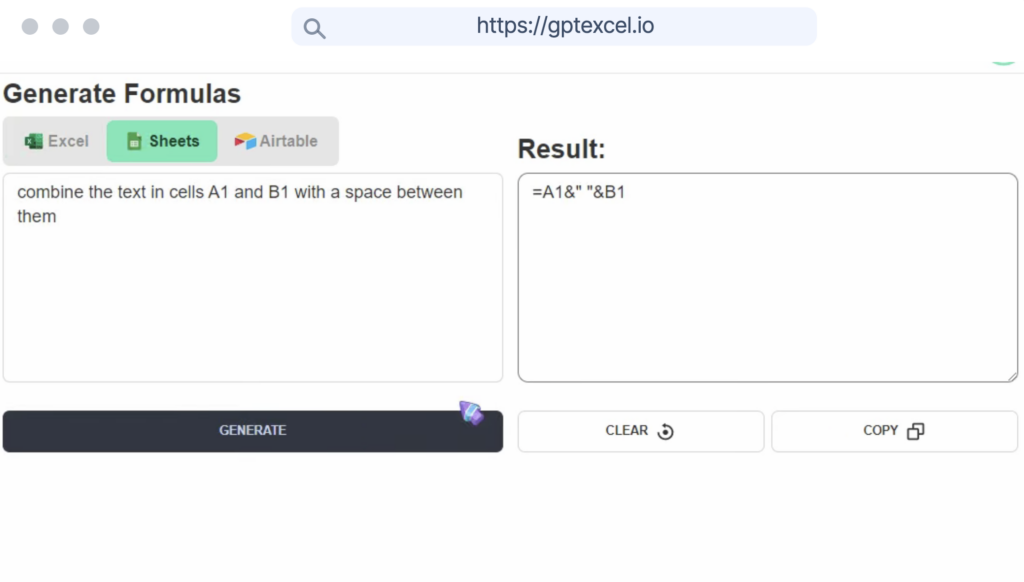
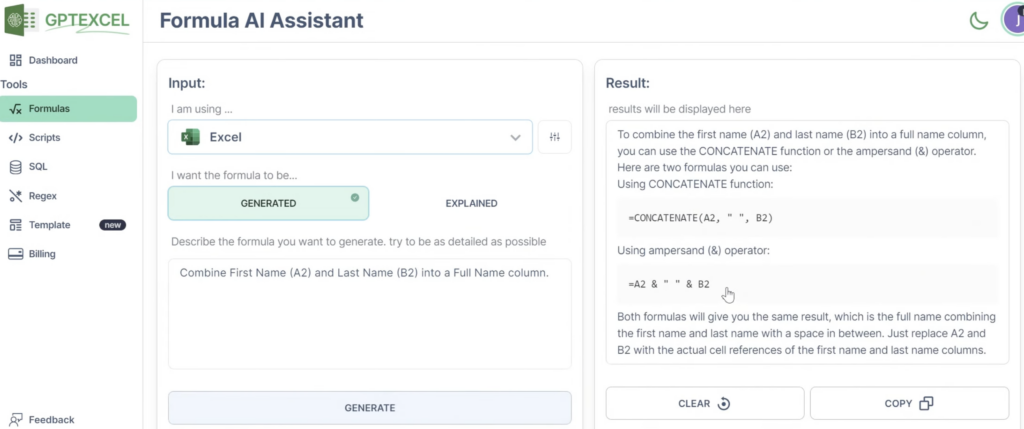
Excel Formula AI changes how you handle data manipulation and analysis. Instead of spending hours in a spreadsheet to build a complex formula by hand, you describe what you need in plain language and the tool writes the formula for you. That shift matters most when a calculation involves nested conditions or references that are hard to get right on the first try.
With tools like GPTExcel, crunching numbers gets much faster; it has already generated over 2.26 million formulas to date.
This function uses artificial intelligence to help users across different languages, since GPTExcel supports more than 50 languages. You can automate calculations and improve efficiency without entering any credit card details upfront.
Sheeter.ai goes further with an easy, intuitive interface that lets anyone build sophisticated formulas quickly. Data analysis can be a few clicks away, even when you are summing specific ranges or finding and replacing values inside your spreadsheet software. You type the outcome you want, and the tool returns a formula you can paste straight into a cell.
GPT for Work adds convenience by running as a direct add-in inside Excel and Google Sheets. Instead of switching between browser tabs or external tools, you can generate formulas, clean data, and automate tasks without leaving your spreadsheet. That makes it practical for anyone who wants AI help built into an existing workflow.
How to Use an AI Excel Formula Generator
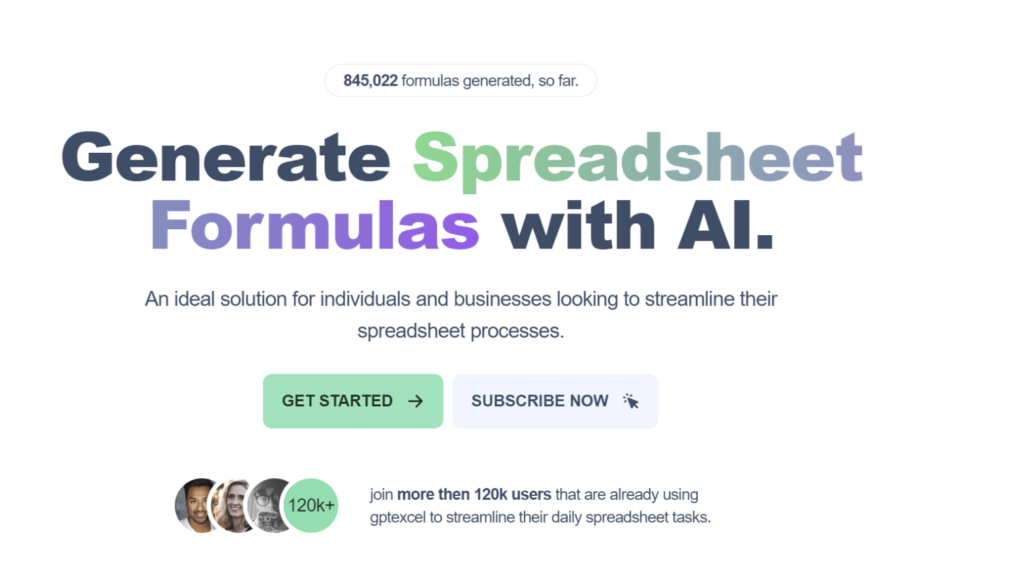
An AI Excel Formula Generator like GPTExcel or Sheeter.ai can change how you approach data analysis. These tools simplify complex calculations and make spreadsheet automation accessible to everyone.
| Steps | Description |
|---|---|
| Select your preferred AI Excel Formula Generator | Click the generate or equivalent option to create the needed formula. With GPTExcel’s automated formula generation feature, this step is quick. |
| Sign up for access | Create an account with your chosen tool. GPTExcel offers a free tier or a pro plan with added benefits and priority support, while Sheeter.ai provides a free trial without needing a credit card. |
| Define the task at hand | Clearly state what calculation or data manipulation you want to perform. The more specific you are, the better the AI assists in generating the right formula. |
| Input your parameters | Enter any necessary variables, range of data, or conditions into the generator. This could involve selecting cells in your spreadsheet or typing out criteria for data analysis. |
| Interact with language support features | If you’re not an English speaker, use the tool’s support for over 50 languages so you get help in the language you’re most comfortable with. |
| Generate your formula | Click generate or equivalent option to create the needed formula. With GPTExcel’s automated formula generation feature, this step is quick. |
| Implement the generated formula | Copy and paste the produced formula into your Excel spreadsheet. Check that it matches your intended calculation goal and adjust if necessary. |
| Test for accuracy | Run some tests using known values to confirm the output matches expectations before deploying it across your dataset – this step keeps your data analysis reliable. |
| Make use of customer support if needed | If any confusion arises or issues occur during use, both platforms offer help—GPTExcel’s priority customer support for pro users and Sheeter.ai’s team contact option are available. |
Benefits of Using an AI Excel Formula Generator
An AI Excel Formula Generator can speed up data analysis, automate complex calculations, and improve overall efficiency in spreadsheet tasks. It also cuts the number of formula errors you have to track down by hand. See how it can change your Excel experience.
Introducing Harvey AI: A New Dimension in Excel Formulae
Harvey AI changes how you approach Excel formulae and raises productivity. It removes the need to work through complex calculations and data processing by hand.
This AI tool from GPTEXCEL automates spreadsheet functions, having built over 2.26 million formulas for users who value efficiency and accuracy.
Harvey AI generates Excel formulas within seconds, which lightens your workload. With support for over 50 languages, it reaches a global user base, and no credit card is required to get started. Whether you are managing detailed invoice systems or want subscription flexibility, Harvey AI offers an advanced yet user-friendly option that adapts to your needs without cutting quality or performance. For teams that process large volumes of data, generating formulas in seconds rather than minutes adds up across a working week.
Read more about Harvey AI

Conclusion
AI-powered Excel formula generators like GPTExcel and Sheeter.ai can change data analysis and calculation automation. These tools speed up spreadsheet work, saving time and effort while returning precise results.
Support for multiple languages, free trials, and affordable pricing options make these AI solutions accessible to a wider audience. With artificial intelligence in Excel, both individuals and businesses can raise productivity and efficiency in data work and change how complex calculations get handled.
(Image Source: GPTExcel and Sheeter.ai website)
Frequently Asked Questions
What is the role of AI in Excel formulas?
AI in Excel formulae can automate repetitive tasks, analyze data patterns, and make predictions based on historical data.
How can I use AI to enhance my Excel spreadsheets?
You can use AI to speed up data entry, perform complex calculations, visualize trends, and generate insights from large datasets in your Excel spreadsheets.
Can I integrate AI into existing Excel formulas?
Yes, you can add AI functions to existing Excel formulas to improve automation and decision-making within your worksheets.
Are there any specific requirements for using AI with Excel formulas?
Using AI with Excel formulae may require access to external plugins or add-ins that offer machine learning algorithms or predictive analytics.
Where can I find resources to learn more about incorporating AI into my Excel formulas?
You can explore online tutorials, webinars, and Microsoft’s official documentation for guidance on using AI technologies with your Excel formulae and improving your spreadsheet workflows.
Related Articles
AI Software
How Can SaaS Companies Use Legal AI to Move Enterprise Deals Forward?
Continue reading →
AI Software
Fireflies vs Otter 2026: Pricing, Limits and Which to Pick
Continue reading →
AI Software
AI in Finance: 12 Use Cases for Corporate Finance Teams in 2026
Continue reading →
AI Software
Copilot vs ChatGPT for Business (2026): Price, Security and Use Cases
Continue reading →