
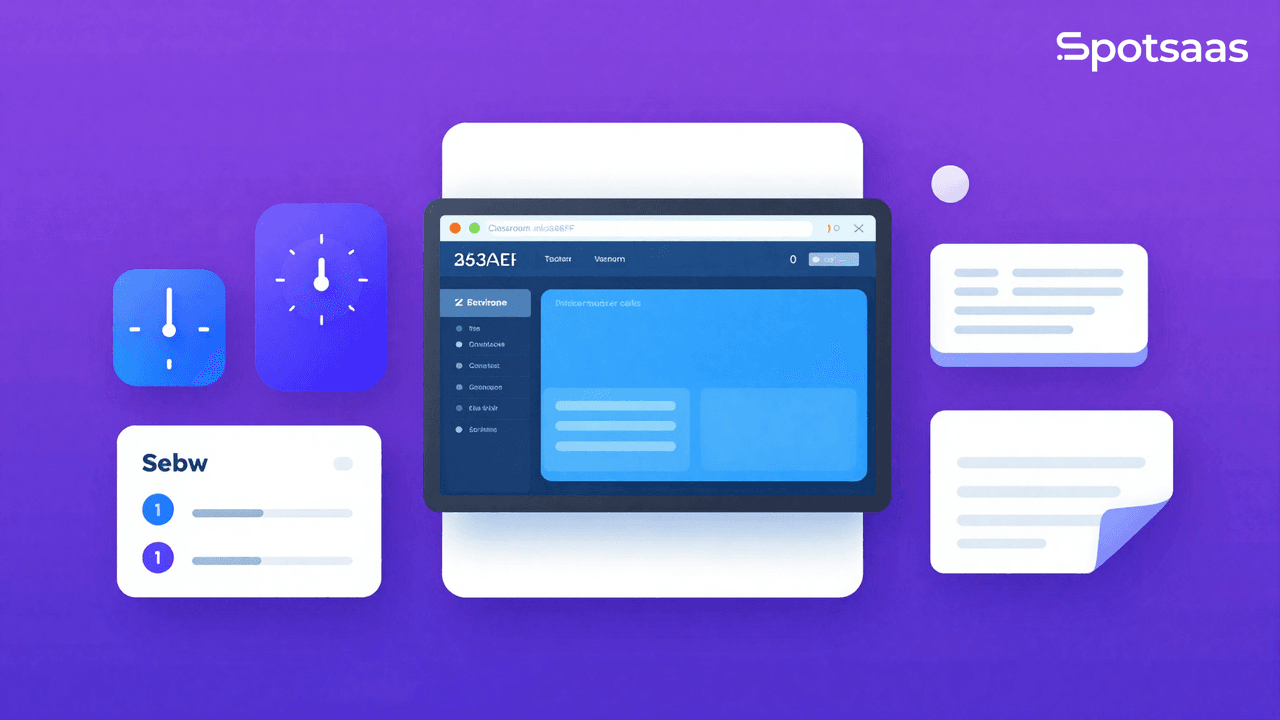
Traditional whiteboards can feel limiting for teachers who want a more interactive way to run lessons and an extra touch that keeps students engaged. Teaching tools have moved on over the years, and Classroom screen is one example: a digital tool that turns any space into an interactive learning area. It gives educators a simple way to make lessons more engaging without extra hardware, and it works whether the class meets in person or online.
This post walks through the main features of Classroom screen and shows how it can add energy and efficiency to a teaching routine. It covers how the tool helps with student engagement, time management, lesson planning, collaboration, giving instructions, and adapting to individual students, along with how to set it up and use it in a virtual classroom. The wheel widget is one of many options that make lessons more interactive.
Key Takeaways
- Classroom screen is an interactive tool that turns any classroom into an active, engaging learning environment.
- It lets teachers engage students, manage time, plan lessons, collaborate, give clear instructions, and adapt to the needs of individual students.
- Teachers can customize their Classroom screen by choosing from a range of templates and adding widgets that support student engagement and classroom management.
- The platform also includes advanced features such as monitoring noise levels, timing activities, gathering student feedback, creating random groups, and polling students.
Benefits of Using Classroom Screen
Classroom screen gives teachers several benefits. It helps them engage students, manage time, plan their class, collaborate, give instruction, and adapt to the class.
Engage students
Engaging students in a dynamic, active learning environment is central to effective teaching. Classroom screen brings this interactive technology right into the classroom, which supports student engagement and promotes active participation throughout a lesson rather than passive listening.
It also makes task differentiation easy. The duo widget option splits the screen into separate sections, so teachers can assign different tasks to different student groups at the same time. By supporting greater interaction and participation, Classroom screen turns an ordinary classroom into a space for shared knowledge and discovery, where students are doing rather than just watching.
Control the clock
Managing time well is a key part of effective teaching, and Classroom screen’s “Control the Clock” feature helps with exactly that. The tool includes a clock widget that shows real time and also lets teachers set alarms.
It ensures students stay on track with their tasks and helps them respond promptly to transition times between one activity and the next.
The countdown timer and stopwatch are also useful, since they give students visual reminders for activities such as quizzes or silent reading periods. These tools help keep the classroom structured and make it easier to manage several tasks at once while student engagement stays high.
Time management gets simpler with the clock control features, and they improve the overall learning experience in the classroom by keeping lessons paced and predictable for both the teacher and the students.
Plan your class
Classroom screen makes it easy to plan a class efficiently. The platform offers a teacher dashboard that works as a core tool for classroom management and lesson planning.
From the dashboard, teachers can set up lessons, choose the widgets they need, and add assignments for different student groups using the duo widget option. This feature splits the screen into two parts, one for instructions or resources and the other for task assignment.
Classroom screen also saves time with reusable lesson plans that can be used again across multiple classes or sessions, so teachers do not have to rebuild the same setup each time. A Pro account adds more structure by letting teachers group screens according to different subjects or topics, which improves how their work is organized over a busy week.
Collaborate effortlessly
Collaborating with students is straightforward with Classroom screen. The duo widget feature splits the screen into two, which makes it easy to give different assignments or tasks to student groups.
This supports a collaborative learning environment where students can work together efficiently on shared goals. Whether in person or in a virtual classroom setting, Classroom screen supports smooth collaboration and lets students share their screens wirelessly from any location, so distance is no longer a barrier to group work.
With this tool, teachers and students can work as a team to reach their educational goals, whether they share the same room or join the lesson from different locations.
Give instruction
The “Give instruction” feature of Classroom screen is helpful for effective teaching. With it, teachers can provide clear, personalized instructions to their students.
On a whiteboard or online, teachers can use work symbols to show students what tasks they should be working on. This keeps students engaged and supports better task management in the classroom.
The user-friendly interface makes it easy to create and customize instructions, so each student receives guidance that is tailored to the task in front of them. By using this feature, teachers can improve the learning experience and support an engaging, interactive classroom environment where expectations are always clear.
Adapt to the class
To meet the diverse needs of their students, teachers can rely on Classroom screen’s ability to adapt to the class. This interactive screen offers customizable tools for personalizing the learning experience for each student.
By bringing technology into the classroom, teachers can use different methods and approaches that suit various learning styles. This helps them create engaging lessons and improve their teaching strategies overall.
With Classroom screen, teachers can adapt their lessons based on student needs and interests, so every lesson is tailored to students’ unique abilities and no group is left behind.
Using Classroom screen to adapt the teaching approach supports a more student-centered environment. It lets teachers differentiate instruction effectively and give extra support to the students who need it most, rather than teaching to the middle of the class.
The user-friendly interface makes it easy to adjust activities, resources, and pacing during lessons. As a result, students stay engaged and take an active part in their own learning journey.
How to Use Classroom screen
To get started with Classroom screen, choose a template that fits your needs and customize it to match your lesson plan. Within about 5 minutes, you can move through the platform and use its features.
For ideas, the blog offers tips and tricks for getting the most out of Classroom screen’s interactive tools.
Getting started with a template
To get started with Classroom Screen, use one of the available templates. Templates are pre-designed screens that you can customize to fit your needs. Here is how to get started with a template:
- Choose a template: Browse the template library and select a design that suits your teaching style and subject.
- Customize the widgets: Once you have chosen a template, add or remove widgets. Widgets are interactive tools that support student engagement and classroom management.
- Edit the text: Personalize the template by editing the text to match your lesson objectives or instructions.
- Adjust the layout: Arrange the widgets on the screen in a way that makes sense for your lesson plan.
- Save and use: Once you are satisfied with your customized template, save it for future use or start using it right away in your classroom.
Learning how to use the Classroom screen in just 5 minutes
Using the Classroom screen is easy and can be done in just a few minutes. Here is how:
- Sign up: Start by creating an account on the Classroom Screen website. It is quick and simple, and you get access to all the features right away.
- Choose a template: Classroom screen offers several pre-designed templates to get you started. Select the one that best suits your needs or customize it to fit your preferences.
- Add widgets: Widgets are the building blocks of Classroom screen. They let you add tools and features to your screen, such as a timer, random name picker, or a poll. Click the widget icon, choose the one you want, and drag it onto the screen.
- Customize widgets: Once you have added a widget, you can adjust its settings. With the timer widget, for example, you can set the duration and choose whether it counts up or down.
- Arrange widgets: Arrange your widgets by dragging them around the screen until they are in the position you want. This lets you build a layout that works best for your teaching style and content.
- Save and share: Once you are happy with your Classroom screen setup, save it. You can then share it with students by giving them a unique URL or displaying it on a projector or interactive whiteboard.
Exploring tips and inspiration from the blog
The Classroom screen blog has plenty of tips and ideas for teaching with this interactive screen. It covers creative teaching strategies that engage students and support participation in the classroom.
It shows how to manage time with Classroom screen’s timer feature for smoother lesson planning. It also offers ideas for collaborating with students and giving clear instructions for effective learning.
The blog also shares useful insights on using Classroom screen as an educational technology tool, giving you the resources and ideas you need to build an engaging, dynamic learning environment for your students.
Real-life examples on the blog, along with practical tips from experienced teachers who use Classroom screen in their classrooms every day, can spark new ways to adapt its features to your own class dynamics and the subjects you teach.
Advanced Features and Support
Classroom screen offers a range of extra widgets and interactive tools that add more to your teaching. It also provides dedicated support and a detailed knowledge base to help you make the most of this classroom tool.
The pricing and subscription options are set up to fit different needs. Read on to see how these advanced features can improve your teaching experience.
Additional widgets and interactive tools
Classroom screen offers a range of extra widgets and interactive tools for the learning environment. With 21 widgets in total, including 13 designed specifically for classroom management, teachers get advanced features that add to their teaching.
These supplementary tools can be found in the “More” section and add options for activities such as monitoring noise levels, timing activities, gathering student feedback, creating random groups, and polling students during a lesson.
The wider set of widgets supports classroom organization and also encourages engagement and interaction among students during lessons and group activities.
Dedicated support and knowledge base
Classroom screen is committed to dedicated support and a full knowledge base for teachers. As a user of Classroom screen, you can rely on its technical assistance, help desk, and troubleshooting services whenever you need them.
A team of experts is ready to help with any questions or issues that come up while using the interactive screen. Classroom screen also offers training materials such as online tutorials, how-to guides, and user manuals, so you have the resources you need for a successful experience.
With this customer service and extensive knowledge base available whenever you need it, you can feel confident using Classroom screen to improve your teaching methods without hurdles or complications.
Classroom screen pricing and subscription options
For subscriptions, Classroom screen offers two main plans: Basic and Pro. The Basic plan is free and includes 13 widgets for teachers to use. The Pro plan includes all the features of the Basic plan, along with extras such as centralized license management and access to usage statistics. The Pro price is not listed, but the plan comes with added utility and support.
| Plan | Widgets | Additional Perks | Price |
|---|---|---|---|
| Basic | 13 widgets | None | Free |
| Pro | All Basic features plus additional widgets | Centralized license management, Access to usage statistics | Not Mentioned |
Classroom screen for Distance Learning
Here are practical tips and strategies for using Classroom screen well in a virtual classroom setting, so teachers can engage and interact with their students even from a distance.
Tips and strategies for using Classroom screen in a virtual classroom setting
When teaching in a virtual classroom, a few tips and strategies help you get the most from Classroom screen. Start each lesson with a timer widget to set a clear time limit for activities or discussions.
This helps students stay on track and manage their time on their own. You can also use the text tool to provide clear instructions or guidelines for assignments, so students understand exactly what is expected of them before they begin.
To encourage students to take an active part, use the voting tool to ask multiple-choice questions and have students vote for their answers in real time.
This supports student engagement and also lets teachers check students’ understanding quickly, without pausing the lesson for a separate quiz.
Another strategy is to use Classroom screen’s collaboration features. The teamwork widget creates groups within your virtual classroom and assigns collaborative tasks or projects for students to work on together. Students can communicate with each other through this feature while working on shared documents or presentations.
You can also add visual aids to your virtual lessons using tools such as the drawing board or the image feature in Classroom screen. These tools let you illustrate concepts visually rather than only describing them, which makes it easier for students to grasp complex ideas and follow along.
Conclusion
Classroom screen is a strong tool that improves classroom engagement and teaching strategies. With its interactive features and user-friendly interface, teachers can build engaging lessons and manage their classrooms well.
In person or online, Classroom screen helps educators create an interactive learning environment that benefits both students and teachers alike. Try Classroom screen today and see the difference it can make in the way you run your classroom.
FAQs
1. What is a classroom screen?
A classroom screen is an interactive display that helps teachers improve their teaching by providing tools and features such as timers, a random name picker, a whiteboard, and more.
2. How can a classroom screen benefit teachers?
A classroom screen can benefit teachers by giving them easy access to helpful tools like timers for managing activities, a random name picker for student participation, and a whiteboard for visual explanations.
3. Can I connect my devices to a classroom screen?
Yes, you can connect devices such as laptops or tablets to a classroom screen via HDMI or wireless connectivity options to share content with the class.
4. Is it difficult to use a classroom screen?
No, using a classroom screen is not difficult. Most models come with user-friendly interfaces and intuitive navigation, so teachers can quickly learn how to use their features.
5. Where can I get a classroom screen for my school?
Classroom screens are available from various technology providers and educational supply stores, both online and offline. You can also check with your school administration for any recommended vendors or suppliers in your area.

- Independent picks for exactly what you just read about
- Matched to your team size & needs
- Vendors don't pay for placement
Step 1 of 4
How big is your team?
We tailor recommendations to companies your size.















Related Articles
Buyers guide
How To Choose The Best Online Learning Platform For 2026
Continue reading →
Buyers guide
How To Choose The Best Restaurant Takeout and Delivery Software For 2026
Continue reading →
Applicant Tracking Software
Best ATS for Retail and Hospitality Hiring in 2026: 5 Tools for High-Volume Recruiting
Continue reading →
Buyers guide
How To Choose The Best Alumni Management Software For 2026
Continue reading →