
Streamyard Review: How to Use a Live Streaming and Recording Studio in Your Browser

Producing live content that holds an audience takes work, but it is one of the clearest ways to stand out online where many creators are competing for attention. StreamYard turns your browser into a live streaming and recording studio that is quick to pick up, even if you have never streamed before.
This guide walks beginners through every step, from guest interviews to branding your show like a pro. Here is how to get a stream running and looking sharp.
Key Takeaways
- StreamYard turns your browser into a full studio, letting you manage and produce professional live streams without extra software.
- Invite guests to your podcast with a link, and show live audience comments on screen to keep viewers involved during the stream.
- Brand your live content with custom logos, colors, and graphics so it stays recognizable to viewers on any device.
- Broadcast at the same time on Facebook, YouTube, LinkedIn, Twitter, and Twitch to reach different audiences.
- Get more out of StreamYard by sharing screens during presentations, using comment overlays for engagement, recording sessions for later reuse, and reviewing viewer data to improve your content.
Streamyard Review: The Comprehensive Live Streaming Software
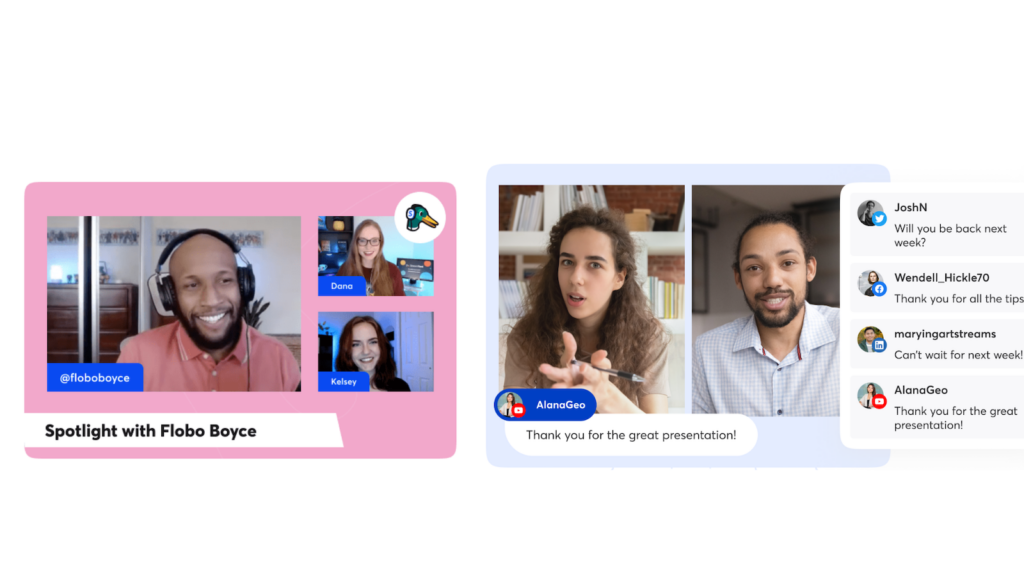
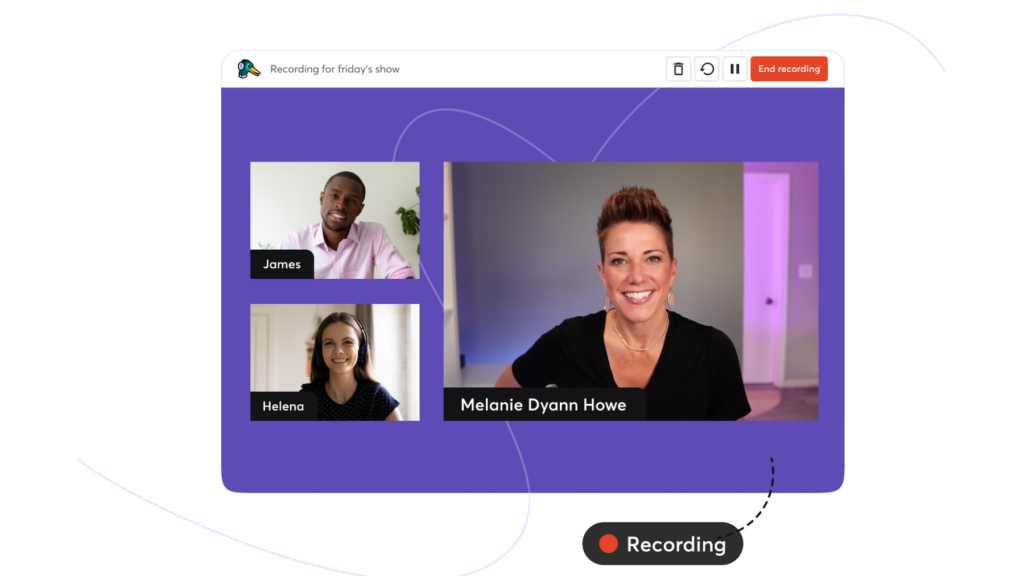
Streamyard removes much of the setup involved in live streaming by giving you an easy, browser-based studio. You can manage and produce professional-looking streams straight from a web browser, with no software to install.
That makes it easy to reach for on a range of devices, including iPads, iPhones, and iPod touch, so you are not tied to a single desktop setup. Streamyard is simple to operate and comes with a set of useful features for making live content on the go, which suits creators who record and stream from different places.
Whether you are running interviews or broadcasting talk shows to platforms like Facebook or YouTube, Streamyard keeps the process straightforward. With customizable branding options on hand, you can add logos, colors, and graphics that match your audience and reflect your personal brand.
Streamyard also supports multistreaming, so you can reach audiences on several platforms such as LinkedIn and Twitch at the same time. That widens your reach and lets you interact with viewers in real time, while holding the high-quality video and audio a strong online presence depends on.
How to Stream or Record Podcasts with Remote Guests
With the main features covered, here is how to stream or record podcasts with remote guests. This setup makes podcasting more flexible and easier to open up to different contributors.
- Set up your Streamyard account and create a new broadcast that fits your podcast.
- Invite remote guests by email or a custom link; they can join from their browser with nothing to download.
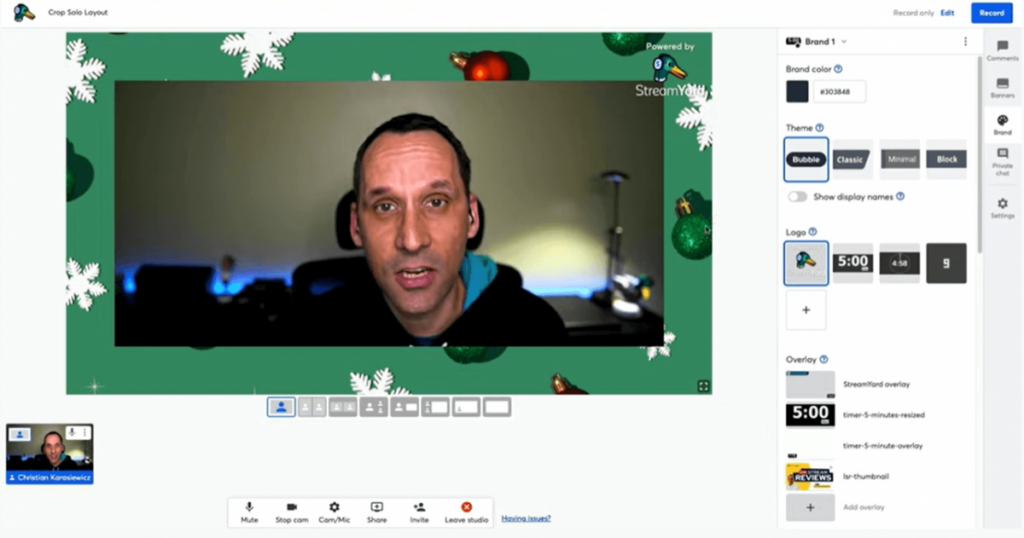
- Use the studio interface to manage audio and video settings for both the host and guests, keeping production quality high.
- Have multiple users sign in to one account so the team can work together during the live stream.
- Rehearse with your guests using the ‘Record Only’ feature before going live, which lets you run through the session without broadcasting it.
- Watch connection stability; Streamyard holds up well across different internet speeds, but check each guest’s connection beforehand.
- Add brand–specific visuals such as logos during the stream to keep the podcast’s branding consistent.
- Use the ‘Comments’ feature to talk with your audience in real time during a live stream, adding an interactive layer to the podcast.
- Record sessions directly in Streamyard for easy editing and reuse later, with no separate recording tool needed.
Enhancing Content for Streamers: Branding and Design on Streamyard
Building a distinct brand identity on Streamyard is quick to do. You can upload logos, pick custom colors, and add eye-catching overlays so your live streams are recognizable at a glance.
That personal touch sets your show apart from other streams and helps viewers remember your content long after they tune out and move on.
Streamyard’s design tools are simple and need no prior design experience. You can raise the production quality of your webinars and embed them on your website for a consistent, branded viewing experience.
With these features on hand, every stream you produce reflects the professionalism and character of your brand and speaks directly to an audience that spends much of its time online watching video.
Multistreaming: Intuitive and Easy Broadcasting on Multiple Platforms Simultaneously
StreamYard lets you broadcast to several platforms at once, including Facebook, YouTube, LinkedIn, Twitter, and Twitch. This widens your reach and puts your content in front of a broader audience across social channels. Here is how it works:
- Reach more people by simulcasting on Facebook Live, YouTube Live, LinkedIn Live, Twitter, and Twitch.
- Connect with audiences on different platforms without managing each stream on its own.
- Shape content for each platform while broadcasting at the same time, so you speak to distinct user bases.
- Grow brand visibility with a wider online presence and draw potential followers from different networks.
- Simplify distribution by sending one live stream to several platforms at once.
Tips for Maximizing Streamyard’s Features
To get the most out of StreamYard, try these tips:
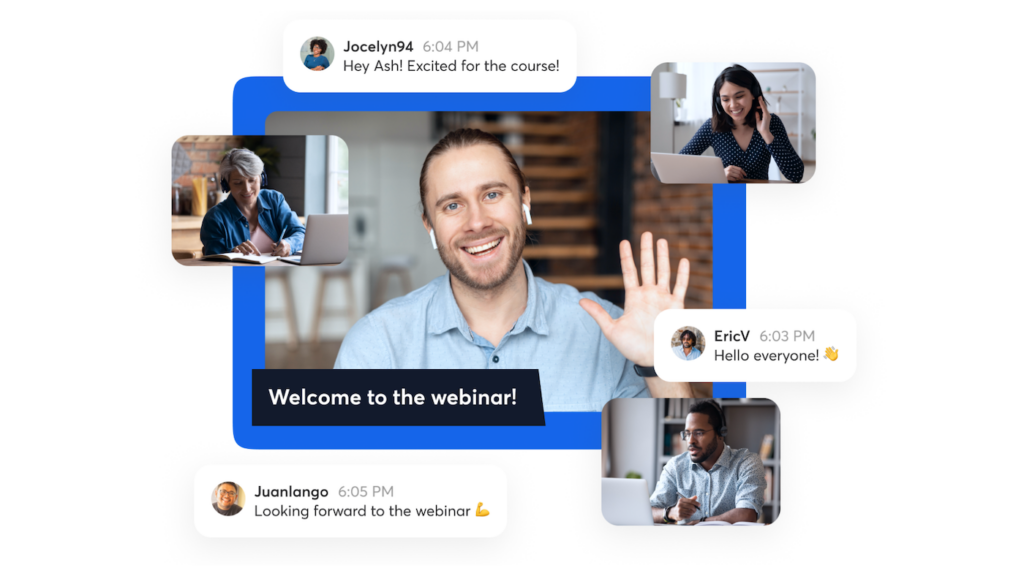
- Use the screen share feature to show presentations, videos, or live demos during a stream, which adds visual interest and keeps viewers engaged.
- Try different layouts and customizations to build a professional-looking broadcast that fits your brand and connects with your audience.
- Use the comment overlay tool to show audience feedback in real time, which encourages interaction across your streaming platforms.
- Use the recording capability to turn live streams into on-demand content, extending their life and reaching more people over time.
- Make use of StreamYard’s links to social media by promoting upcoming broadcasts and staying in touch with your audience before, during, and after each session.
- Check the analytics in StreamYard regularly to understand viewer behavior, preferences, and engagement, so you can make data-informed changes to future broadcasts.
Conclusion
Running a live streaming and recording studio in your browser with Streamyard is convenient and easy to learn, even for a first-time host. You can record content or stream it live to platforms such as Facebook, YouTube, LinkedIn, Twitter, and Twitch.
Streamyard also lets you brand shows with logos, colors, and videos without any design skills. With its multistreaming feature, you can reach a wider audience by broadcasting on several platforms at once.
The option to have multiple users sign in to one account adds useful backup if something goes wrong during a broadcast or live event. Streamyard offers both a free version and a paid version, and the free plan already covers high-quality live streaming.
(Image Credit: Streamyard)
Frequently Asked Questions
What is Streamyard Studio, and how does it work for beginners?
Streamyard Studio is a browser-based streaming platform that lets beginners start live streaming and recording right from their browser, with no complex software to set up.
Can I use Streamyard on any device like an iPod Touch?
Yes. You can use Streamyard on a range of devices, including an iPod Touch, as long as you have a stable internet connection and a compatible web browser.
How does the privacy policy protect my live streams on Streamyard?
Streamyard’s privacy policy is meant to keep your content protected while you use the platform, so you can stream with confidence that your live content is secure.
Does Gary Vaynerchuk use tools like Streamyard for his broadcasts?
Yes. Figures like Gary Vaynerchuk use platforms such as Streamyard to connect with audiences through live broadcasts straight from their browsers.

- Independent picks for exactly what you just read about
- Matched to your team size & needs
- Vendors don't pay for placement
Step 1 of 4
How big is your team?
We tailor recommendations to companies your size.















Related Articles
AI Software
Fireflies vs Otter 2026: Pricing, Limits and Which to Pick
Continue reading →
AI Software
8 Best AI Meeting Assistants for Teams (2026)
Continue reading →
SaaS Buying Guides
Best Podcast Hosting Platforms in 2026: 9 Hosts Compared by Price
Continue reading →

Video Conferencing
Best Video Conferencing Software Platforms: Top 5 Picks for 2026
Continue reading →