

Virtual gatherings have become the norm, and online platforms have turned into our new favorite hangout spots.
But not all live streams are created equal. If you’ve ever struggled to keep up with choppy audio, buffering video, or the plain awkwardness of a virtual event, this guide is for you. None of those failures are exotic — they usually come down to picking the wrong platform, skipping a test run, or not having a real plan for the hour you’re on camera.
Below, we walk through how to stream like a pro and make your virtual events the talk of the town (or at least the talk of your friend group).
Grab a coffee, get comfortable, and let’s go through what it actually takes to run a good live stream.
What Is Live Streaming: Everything You Need To Know
Live streaming is the act of broadcasting live video and audio over the internet in real time. Instead of watching a recorded version of an event, performance, or piece of content afterward, viewers experience it as it happens. That immediacy is the whole appeal — a recorded video can be edited and polished after the fact, but a live stream succeeds or fails in the moment, in front of whoever’s watching.
The “One World: United at Home” virtual concert, which Lady Gaga and Global Citizen organized on April 18, 2020, in reaction to the COVID-19 epidemic, is one of the most watched live broadcasts in the country to date. Well-known musicians, including Billie Eilish, Taylor Swift, and The Rolling Stones, performed at the event, which was broadcast live on YouTube, Facebook, and Twitter.
The stream drew an estimated viewership of over 20 million people in the USA alone, and raised over $127 million for the World Health Organization’s COVID-19 Solidarity Response Fund. It’s a good example of what a well-run virtual event can pull off, even during a global crisis.
Top Reasons To Live Stream
Live streaming an event in 2023 can provide real benefits for organizers, participants, and viewers alike. Here are the top 3 reasons to consider live streaming your event:
- Improved Audience Reach and Engagement: Live streaming your event connects you with a lot more people than an in-person event alone could reach. You can draw in people from all over the world who might not have been able to attend in person because of travel or scheduling limits. It also lets viewers participate in real time by asking questions or leaving comments during a Q and A session — a kind of interaction an in-person-only event can’t really replicate at the same scale.
- Effective: Venue rental, catering, and travel can make an in-person gathering pricey. Live streaming an event is usually the more affordable choice because it cuts out most of those costs. It can also generate income through sponsorships, advertisements, or pay-per-view models, which helps offset whatever it does cost to run — for events organized purely around revenue, that difference alone can decide whether the event breaks even.
- Improved Accessibility: Live streaming an event can widen access for people with disabilities or other accessibility needs — closed captioning or sign language interpretation lets more people take part. It’s also a more workable option for people who deal with social anxiety or would simply rather attend from home. Building these options in from the start costs a lot less than retrofitting them onto an event that’s already been planned.
Virtual Event Live Streaming To-Do List
Here is a checklist to help you get ready and make sure your live stream of an event goes well. Skipping any one of these steps is usually where a live stream goes sideways, whether that’s dead air from an untested mic or an audience who never heard about the event in time.
- Choose A Platform: Pick a live streaming platform that fits your requirements, audience, and price range. Zoom, Facebook Live, Twitch, and YouTube are a few well-liked options. When exploring options for professional streaming, it’s worth comparing dacast competitors to find the platform that best fits your needs.
- Pick Your Equipment: Make sure you have a camera, a microphone, and a strong internet connection before you go live. Test your equipment beforehand to confirm it’s working properly.
- Promote It: Use social media, email, and other marketing tools to publicize your event and build interest in the stream. To reach a larger audience, consider partnering with influencers or other businesses.
- Plan A Content Outline: Draft an outline or script so your stream’s content stays relevant to your viewers. Interactive elements like surveys, Q and A segments, or guest speakers help keep people engaged.
- Rehearse: Run through your live stream in advance so nothing goes wrong on the day of the event. Check your tools, your lighting and sound quality, and your material to make sure you stay on course. A dry run is also the easiest way to catch a shaky internet connection or a bad audio setup before it becomes visible to your actual audience.
- Make People Participate: Invite your audience to ask questions or leave comments while you’re live. Responding in real time keeps the session feeling dynamic instead of one-directional.
- Evaluate The Results: After the stream, review what went well and what could improve for next time. Viewer engagement, retention rates, and conversion rates are good places to look for opportunities to improve.
Working through this checklist goes a long way toward making your live stream successful and memorable for your viewers.
Engage Audience In A Live Streaming Event: Start Streaming With This Essential Guide
If you’re looking for ways to keep your audience engaged during your next virtual event, here are some tips to help you connect with viewers and keep them coming back:
- Get interactive: Don’t just talk at your viewers — get them involved. Polls, quizzes, or live Q and A sessions keep your audience engaged and invested in your content.
- Show your personality: People don’t just tune in for your content, they want to see you. A joke, a personal story, or just being yourself goes further than a polished script. Viewers appreciate the authenticity and feel more connected to you as a result.
- Create a sense of urgency: Give your viewers a reason to tune in now. Consider a limited-time discount or special offer for people watching your stream live, or build buzz by announcing a surprise guest or special announcement that only gets revealed during the event.
- Keep it short and sweet: Attention spans are short, so keep your stream tight to avoid losing viewers. Aim for a runtime of 30 minutes to an hour, and break your content into segments that are easy to follow.
- Engage with your viewers: Talk with your viewers, not just at them. Respond to comments and questions in real time, and ask for feedback or suggestions to help improve your content and keep people invested in your brand.
Following these tips goes a long way toward creating a live streaming event that people actually remember and want to come back for. None of them require expensive equipment — they’re about how you run the session, not what gear you’re using.
Start Live Streaming On Social Media Platforms Like Facebook, Instagram, & Tik Tok (2026 Updated)
The exact steps vary a bit by platform, but they all follow roughly the same pattern: open the app, set up your stream details, connect your camera and mic, and go live. Here’s how that breaks down on each of the major platforms.
Live Stream On Facebook
The fundamental procedures to live stream an event on Facebook are as follows:
- Log in to your Facebook account by opening the app or website.
- On the Facebook homepage, select “Live” from the menu on the left.
- To set up your live stream, click “Create Live Stream.”
- Insert your event’s information, including the name and description.
- The privacy settings for your live stream can be chosen (public, friends only, or a specific group or individual).
- Set up your PC or device’s camera and microphone.
- To begin your live stream, use the “Go Live” option.
- Click on the “End Live Video” button to end the live stream when you’re finished.
- Once the live stream has ended, you can choose to publish the video to your timeline or delete it if you don’t want to keep it.
Live Stream On Instagram
To live stream an event on Instagram, follow these simple instructions:
- On your smartphone, launch the Instagram app and sign into your account.
- In the upper-left corner of the screen, tap the camera symbol.
- Turn on “Live” on the camera mode selector.
- To begin your live stream, tap the “Live” button.
- Give your live stream a title, then choose the viewers you wish to share it with.
- To start your live stream, tap the “Start Live Video” button.
- During the live stream, engage with your audience by reading their comments and answering them.
- After you’re done, tap the “End” button to stop the live stream.
Host Live Event On Tik Tok
Follow these simple instructions to live stream an event on TikTok:
- Download the TikTok app and register for an account if you don’t already have one.
- Note: With TikTok, you must have at least 1,000 followers and be 16 years of age in order to allow live broadcasting.
- Make a live stream plan: Plan based on the type of event you want to broadcast, and make sure you have the required tools and a reliable internet connection (a smartphone, tripod, microphone, etc.)
- Set up your live stream: Open the TikTok app and tap the + symbol at the bottom of the screen to start a new video. Add a title and description for your live stream by selecting the “Live” option at the bottom of the screen.
- Check your equipment: Before going live, check that your equipment and internet connection are all in working order.
- When you’re ready to start streaming live, tap the “Go Live” button to get started.
- Put an end to your live stream by tapping the “Finish” button at the bottom of the screen when you’re ready.
Live Stream On YouTube
For YouTube Live, you’ll need to follow these basic steps:
- Create a YouTube account: If you don’t have a YouTube account yet, sign up for one by visiting www.youtube.com/signup.
- Verify your account: To enable live streaming on YouTube, you need to verify your account. You can do this by providing a phone number and entering a verification code.
- Enable live streaming: Once your account is verified, go to your YouTube Studio dashboard and click on the “Live Streaming” tab on the left-hand menu, then follow the prompts to enable live streaming on your account.
- Set up your live stream: Click on the “Create Stream” button on the YouTube Studio dashboard. There, you can enter the details of your stream, such as the title, description, and privacy settings.
- Choose your encoder: To live stream on YouTube, you need an encoder to encode your video content and audio feeds into a format that YouTube can broadcast. You can use software encoders like OBS or hardware encoders like the Elgato Stream Deck.
- Connect your encoder to YouTube: Once your encoder is set up, go to the “Stream Setup” tab in YouTube Studio and copy the stream key and server URL, then enter that information into your encoder.
- Test your stream: Before going live, make sure to test your stream to confirm everything is working properly. You can do this by clicking on the “Preview Stream” button in YouTube Studio.
- Go live: When you’re ready to go live, click on the “Go Live” button in your encoder. This will start your live stream on YouTube.
- End your live stream: When you’re ready to end your live stream, stop your encoder.
Top 2 Live Streaming Platform In 2026: Go Live!
Crowdcast
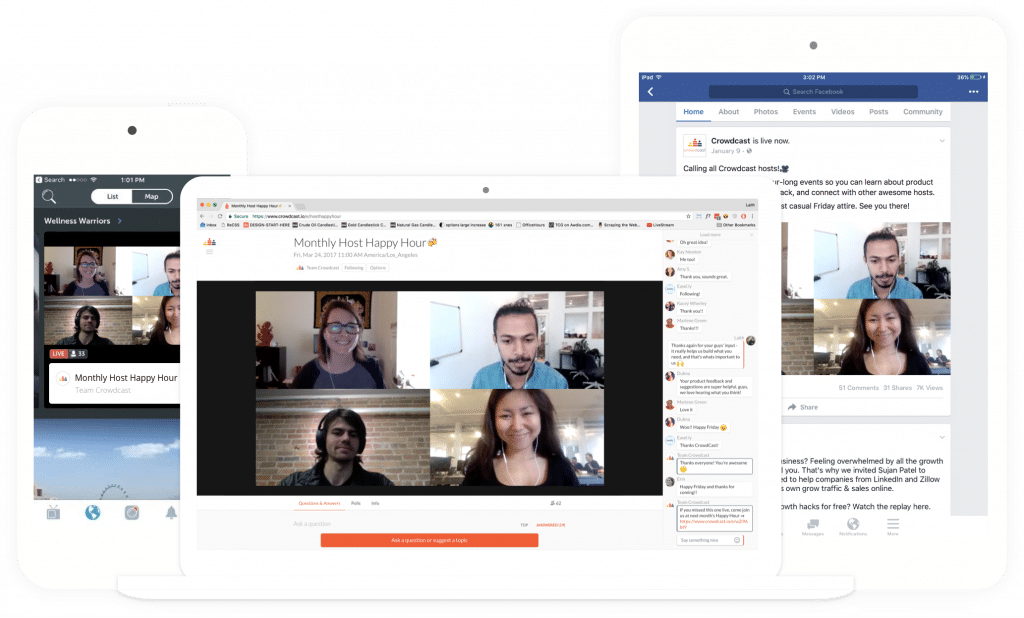
Crowdcast is a live streaming platform that lets creators, educators, and businesses host webinars, workshops, and other online events.
Its interface is straightforward and the feature set is deep enough to make it easy to connect with your audience and deliver live content that holds attention. Whether you’re building your brand, educating your followers, or growing your business, Crowdcast gives you a solid platform for reaching those goals.
Crowdcast Features
- Browser-based, no downloads
- One intelligent link
- Built-in landing pages
- Email & push notifications
- Invite anyone on stage
- Multi-stream your events
- RTMP Mode
- Live timestamped Q&A
- Create & share clips
- Advanced analytics
- Integrations
Crowdcast Pricing
- During the 14 day free trial of CrowdCast, you’ll have access to all features and integrations. Live sessions are limited to 60 minutes and 10 live attendees.
- There are also three paid plans, Lite, Pro, & Business, these plans start at $49/mo and goes up to $195/mo.
- You can explore the detailed pricing plans at the Crowdcast pricing page, here
Crowdcast Pros & Cons
| Pros | Cons |
|---|---|
| Easy-to-use platform | Poor screen-sharing quality |
| Great visual experience | Flaky recurring payments |
| Easy to set up |
Between the built-in landing pages, multi-stream support, and live timestamped Q and A, a lot of what you’d normally need a separate tool for is already built into Crowdcast. The trade-off, based on user feedback, comes down to screen-sharing quality and how reliable the recurring billing has been.
Vimeo Livestream
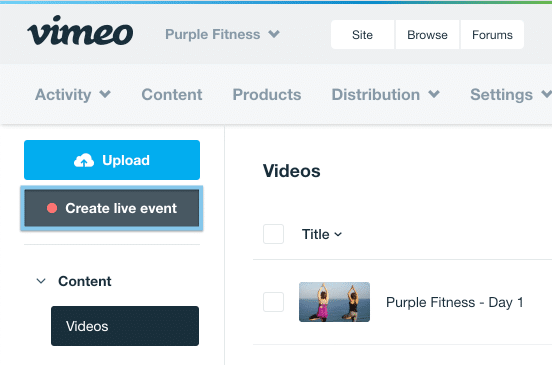
Vimeo Livestream is a live streaming platform that lets creators and businesses broadcast live events to audiences around the world. From conferences and concerts to webinars and product launches, it provides the tools you need to reach viewers and deliver good-quality live content.
With a customizable player, detailed analytics, and an easy-to-use interface, Vimeo Livestream is a solid choice for anyone looking to reach a global audience.
Vimeo Livestream Features
- Interactive video
- Live stream
- Screen recorder
- Create video maker
- Online video editor
- Video library
- Ad-free player
- Video hosting
- Privacy
- Small business
- Enterprise
- Webinars
- Video analytics
- Video monetization
Vimeo Livestream Pricing
- The Vimeo Basic Free Trial is a good fit for individuals who want to join the community without uploading tons of videos each week.
- The three paid plans, starter, standard, & premium, start at $7 per seat/month and go up to $75 per seat/month.
- You can explore the detailed pricing plans at the Vimeo Livestream pricing page, here
Vimeo Livestream Pros & Cons
| Pros | Cons |
|---|---|
| Low cost plans | Lacks stream delay feature |
| Streamlined processes | Lacks customizable features of video editing |
| Easy set up |
With interactive video, a built-in screen recorder, and its own video editor in the feature mix, Vimeo Livestream ends up doubling as more than just a streaming tool. The main gaps people point to are the missing stream delay option and video editing tools that are lighter than what a dedicated editor offers.
Want to find the right virtual event software for your requirements? Here is a detailed guide on the same:
Top 5 Virtual Event Platforms (2026)
Conclusion
If you want your virtual events to stand out in 2023, streaming like a pro comes down to the basics covered here: the right platform, tested equipment, a clear content plan, and real engagement with your audience.
Whether you’re a seasoned pro or new to virtual events, these tips and tricks are a solid starting point for a streaming experience people actually remember.
With a bit of preparation and some creative thinking, you can put together a virtual event that gets people talking. The technical side matters, but it’s the audience connection that actually keeps people watching until the end.
Read More
Virtual Event Platform for Proven Coordination: Detailed Guide
Livestreaming: It’s Not Just For Gamers Anymore
Frequently Asked Questions (FAQs)
What platforms are best for live streaming?
The most popular social platforms for live streaming are YouTube, Facebook, Instagram, TikTok, Twitch, and LinkedIn.
What are the different types of live stream?
There are several types of live streams, and the right one depends on your goals and the kind of content you plan to share. Event streaming covers things like concerts, conferences, festivals, or sports events. Webinars are live educational or informational sessions, usually hosted for business or marketing purposes. Gaming streams show people playing video games, often with commentary or audience interaction. Talk shows and interviews feature hosts or guests discussing topics with audience input. Creative streams cover art, music, or other creative work, again often with audience interaction. Personal streams follow an individual going about their day or sharing personal experiences. Finally, Q and A sessions are streams where the host answers audience questions in real time.
What are the benefits of live streaming?
Live streaming has grown a lot in popularity, and for good reason: it drives increased engagement, is cost-effective, reaches a wider audience, feels more authentic, provides real-time feedback, offers convenience, and lets you repurpose the content afterward.
What is live streaming software?
Live streaming software is a type of software that lets you broadcast live video and audio over the internet. It typically includes features such as video and audio encoding, streaming protocols, and tools for managing and monitoring your stream.
Compare alternatives to the tools in this post

- Independent picks for exactly what you just read about
- Matched to your team size & needs
- Vendors don't pay for placement
Step 1 of 4
How big is your team?
We tailor recommendations to companies your size.















Related Articles
E-commerce Platforms
Shopify Statistics 2026: Revenue, Growth, and Merchant Data Insights
Continue reading →
Shopify
Top 5 Virtual Event Platforms (2026)
Continue reading →
Shopify
Virtual Event Platform for Proven Coordination: Detailed Guide
Continue reading →
Shopify
Aisle Planner Review: Comprehensive Software Solution for Event Management
Continue reading →