

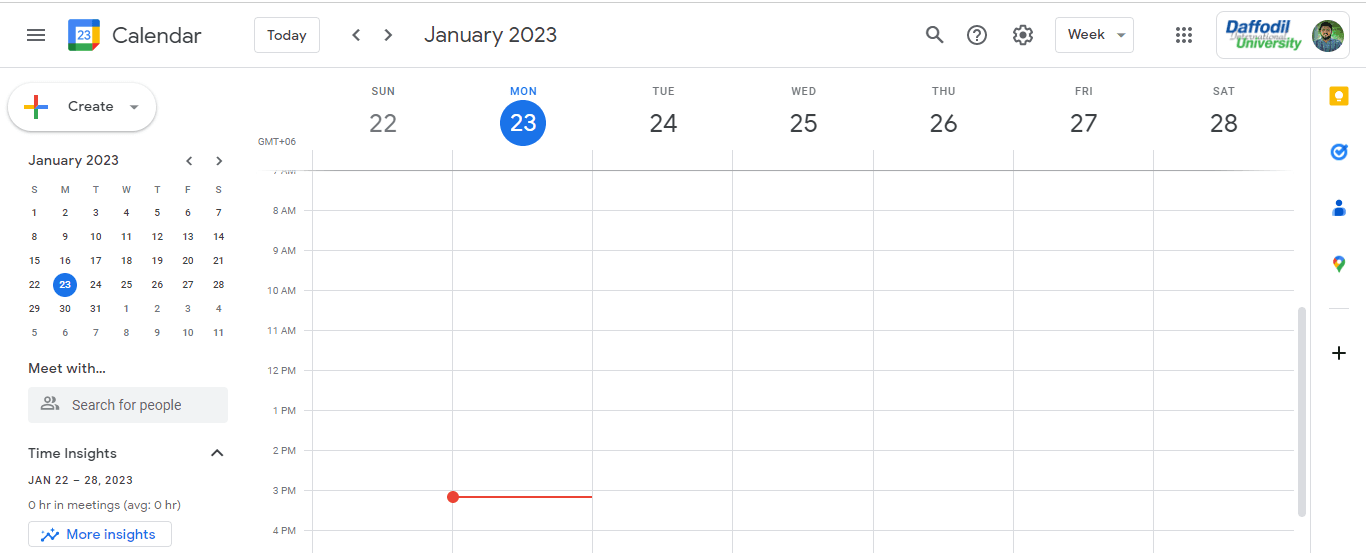
Adding someone to Google Calendar is one of the most effective ways to streamline team coordination, family scheduling, and collaborative project planning. Whether you want to share your entire calendar with colleagues or invite a single person to one event, Google Calendar gives you granular control over who sees what and when.
This guide walks you through every method, setting, and permission level available as of 2026.
Why This Blog Matters
Knowing how to add someone to Google Calendar improves scheduling across teams, families, clients, and shared workflows. With more people relying on calendar sharing, event invites, Google Workspace tools, and meeting coordination software, getting permissions right saves time and avoids confusion.
What You Will Learn Here
This guide explains how to share a full Google Calendar, invite someone to a single event, manage permission levels, use Calendar IDs, remove access, and fix common sharing issues. It also compares Google Calendar, Outlook Calendar, Apple Calendar, Calendly, and Notion Calendar for scheduling, collaboration, and integrations.
Who Should Read This
Best for remote teams, managers, assistants, freelancers, families, and Google Workspace users who need better scheduling visibility. It is also useful for anyone comparing calendar apps, booking platforms, productivity software, and team collaboration tools for shared planning and event management.
What Does It Mean to Add Someone to Google Calendar?
Quick Answer: Adding someone to Google Calendar means either sharing your full calendar so another person can view or edit your events, or inviting a specific person to a single event. You control access levels, from view-only to full editing rights, and can revoke access at any time from calendar settings.
Google Calendar operates on two distinct sharing models. The first is calendar-level sharing, where you grant another person ongoing access to see all events on a specific calendar. The second is event-level sharing, where you add guests to a single meeting or appointment without giving them broader access to your schedule.
Understanding which model fits your need is the first step. A team manager might want calendar-level sharing so a colleague can always see their availability. A freelancer, however, might only want to invite a client to a specific project kickoff call without revealing their entire schedule.
Why Google Calendar Sharing Matters in 2026
Remote and hybrid work has made calendar transparency more important than ever. According to Google Workspace data (2026), over 500 million people actively use Google Calendar, making it the most widely adopted digital calendar platform in the world.
According to a McKinsey Global Institute report (2026), employees spend an average of 3.6 hours per week in scheduling-related back-and-forth communication — time that shared calendar access can eliminate almost entirely.
According to Atlassian’s Teamwork research (2026), 60% of workers say unclear scheduling and meeting coordination directly reduces their productivity. Shared calendars solve this by giving all participants a single source of scheduling truth.
As of 2026, Google Calendar integrates natively with Google Meet, Gmail, Google Tasks, and third-party tools like Slack, making it a central hub for workplace coordination rather than just a scheduling tool.
How to Share Your Google Calendar With Specific People
Sharing your Google Calendar with a specific person is a straightforward process done entirely from the desktop version of Google Calendar. Mobile apps do not support full calendar sharing settings, so use a browser for this task.
- Open Google Calendar at calendar.google.com in your desktop browser.
- On the left sidebar, locate “My Calendars” and find the calendar you want to share.
- Hover over the calendar name until you see the three-dot menu icon appear to the right.
- Click the three dots and select “Settings and sharing” from the dropdown menu.
- Scroll down to the “Share with specific people or groups” section.
- Click the “+ Add people and groups” button.
- Type the email address of the person you want to add. This works for Gmail accounts and Google Workspace accounts.
- Use the permission dropdown to select the appropriate access level (detailed in the next section).
- Click “Send” to send them an email invitation to view your calendar.
- The recipient must click “Add this calendar” in the invitation email to complete the process.
Once accepted, the shared calendar will appear in the recipient’s Google Calendar sidebar under “Other calendars.” They will see your events based on the permission level you assigned.
Understanding Google Calendar Permission Levels
Choosing the right permission level is critical. Giving someone too much access can lead to accidental edits or deletions. Giving too little means they cannot do what they need to do. Google Calendar offers four distinct permission tiers.
| Permission Level | What the Person Can See or Do | Best Use Case |
|---|---|---|
| See only free/busy (hide details) | Can see when you are busy but not event titles, locations, or descriptions | External contacts, clients, or anyone who only needs to know your availability |
| See all event details | Can view full event information including titles, descriptions, attendees, and locations | Colleagues who need to reference your schedule without editing it |
| Make changes to events | Can add, edit, and delete events on your calendar | Assistants, team leads, or co-managers who schedule on your behalf |
| Make changes and manage sharing | Full admin-level access including the ability to share the calendar with others | Trusted administrators or calendar co-owners in a business setting |
According to Google’s own Workspace documentation, the “See only free/busy” setting is the recommended default when sharing with people outside your organization, as it protects sensitive event details while still enabling scheduling coordination.
How to Add Someone to Google Calendar With All Your Contacts
If you want to make your calendar visible to everyone in your organization or contact list, Google Calendar offers a broader sharing option. This is particularly useful in corporate Google Workspace environments.
- Open Google Calendar on your desktop browser.
- Hover over the calendar name in the left sidebar and click the three-dot menu.
- Select “Settings and sharing.”
- Scroll to the “Access permissions for events” section.
- Check the box next to “Make available to public” if you want anyone with the link to view the calendar, or “Make available for [your organization]” if you use Google Workspace and want to limit it to your company.
- Choose whether you want them to see all event details or only free/busy information.
- Click “Get shareable link” if you want to distribute access via a URL rather than individual email invitations.
This method is ideal for shared team calendars, public-facing event calendars, or organizational resource calendars like meeting room booking schedules.
How to Add Someone to a Specific Google Calendar Event
Adding a guest to a single event is different from sharing your entire calendar. This is the method you use when scheduling a meeting, call, or appointment with specific people.
- Open Google Calendar and click on the date and time where you want to create the event, or click an existing event to edit it.
- In the event creation window, click “More options” to open the full event editor.
- Find the “Add guests” field on the right side of the editor.
- Type the email address of each person you want to invite. You can add multiple guests.
- Under “Guest permissions,” choose whether guests can modify the event, invite other guests, or see the full guest list.
- Click “Save.” Google Calendar will ask if you want to send invitation emails to the guests.
- Click “Send” to notify all guests. They will receive an email with options to Accept, Decline, or mark themselves as Maybe.
Guests who accept the invitation will automatically have the event added to their own Google Calendar. You can see each guest’s RSVP status directly within the event details.
How to Add Someone to Google Calendar on Mobile
While full calendar sharing settings require a desktop browser, you can still invite guests to individual events from the Google Calendar mobile app on both Android and iOS.
- Open the Google Calendar app on your phone.
- Tap the “+” button or tap a time slot to create a new event, or tap an existing event and select Edit (pencil icon).
- Scroll down to find the “Add people” or “Invite people” field.
- Type the email address or name of the person you want to add. Google will suggest contacts automatically.
- Tap the suggested contact or finish typing the email and confirm.
- Tap “Save” at the top right corner. Choose to send email invitations when prompted.
If you need to change calendar-level sharing permissions from mobile, you will need to visit calendar.google.com in a mobile browser rather than using the app, as the app does not expose those settings.
How to Use a Calendar ID to Share Google Calendar Access
Every Google Calendar has a unique Calendar ID, a string that looks like an email address. This ID can be used to share access in bulk or with specific technical integrations.
- Go to calendar settings by clicking the three-dot menu next to your calendar and selecting “Settings and sharing.”
- Scroll down to the “Integrate calendar” section.
- Copy the Calendar ID shown in that section. It will look something like [email protected] or a longer alphanumeric string for secondary calendars.
- Share this ID with developers or administrators who need to integrate your calendar with other tools, or use it in Google Workspace admin settings to grant organizational access.
The Calendar ID is also how you subscribe to other people’s public calendars. If someone shares their Calendar ID or a public calendar URL with you, you can add it to your Google Calendar by going to “Other calendars” > “Add by URL” in the sidebar.
How to Manage and Remove People From Your Google Calendar
Managing access over time is just as important as setting it up correctly. People change roles, leave organizations, or simply no longer need access to your schedule.
- Go to Settings and sharing for the relevant calendar.
- Scroll to “Share with specific people or groups.”
- Find the person whose access you want to change or remove.
- To change permissions, click the dropdown next to their name and select a new permission level.
- To remove them entirely, click the trash/delete icon next to their name.
- Changes take effect immediately with no confirmation email sent to the removed person.
It is good practice to audit your calendar sharing settings quarterly, especially for work calendars that may contain sensitive scheduling information.
How to Disable Google Calendar Sharing Completely
If you need to make your calendar fully private, you can disable all sharing in a few steps.
- Open Settings and sharing for the calendar.
- Under “Access permissions for events,” uncheck any public or organizational access options.
- Under “Share with specific people or groups,” remove every individual entry using the delete icon.
- Click the back arrow to save changes automatically.
Once all sharing is removed, only you will be able to see the calendar’s contents. Other users who previously had access will see the calendar disappear from their sidebar.
Google Calendar vs Other Shared Calendar Tools
Before committing to Google Calendar as your team’s scheduling hub, it helps to understand how it compares to alternatives in terms of collaboration features, pricing, and integrations.
| Tool | Best For | Sharing Features | Price (2026) | Integrations |
|---|---|---|---|---|
| Google Calendar | Google Workspace users, teams of all sizes | Calendar-level and event-level sharing, granular permissions, public calendar links | Free with Gmail; from $6/user/month with Workspace | Google Meet, Gmail, Drive, Slack, Zoom, 500+ apps |
| Microsoft Outlook Calendar | Microsoft 365 enterprise environments | Delegate access, shared mailboxes, room booking | Included in Microsoft 365; from $6/user/month | Teams, SharePoint, Dynamics, third-party tools |
| Apple Calendar | Apple ecosystem users, personal use | iCloud calendar sharing, limited permission controls | Free with Apple ID | iCloud, Siri, Apple apps only |
| Calendly | Scheduling links, client-facing bookings | Team scheduling pages, round-robin booking | Free tier; from $10/user/month | Google Calendar, Outlook, Zoom, Salesforce |
| Notion Calendar | Notion workspace users, async teams | Shared views, calendar embedding | Free with Notion; paid plans from $8/user/month | Notion, Google Calendar, Zoom |
According to workplace productivity consultant Laura Mae Martin, author of Uptime and Google’s internal Executive Productivity Advisor, shared calendars work best when teams establish clear norms around what events to include, how far in advance to schedule, and what permission levels mean in practice within their organization.
3 Unique Ways to Get More From Google Calendar Sharing
Most guides stop at the basics. Here are three advanced strategies that can significantly improve how you and your team use shared Google Calendars.
Create Separate Calendars for Different Sharing Needs
Instead of sharing your main calendar, create separate calendars within the same Google account for different purposes. For example, create a “Team Meetings” calendar shared with your full team, a “Client Calls” calendar shared only with clients at free/busy level, and keep your personal calendar entirely private.
This layered approach gives you precise control without compromising privacy. You can color-code each calendar, and all events appear in a single unified view on your end while others only see what is relevant to them.
Use Google Calendar With Project Management Tools for Richer Context
Shared calendars alone show when things happen but not why. Integrating Google Calendar with tools like Asana or ClickUp lets you link calendar events to specific tasks, projects, and deadlines.
When a team member views a meeting on the shared calendar, they can click through to see the associated project brief, task list, or deliverables. This transforms scheduling from a logistics exercise into a coordination system with full context attached.
Set Up Notification Rules for Shared Calendars
When you share a calendar and someone else can add or edit events, you risk missing changes. Set up email or push notification alerts specifically for shared calendars so you are always informed when events are created, modified, or deleted.
Go to the calendar’s settings, scroll to the “Event notifications” and “All-day event notifications” sections, and add notification rules. You can receive alerts via email or as browser notifications, ensuring no scheduling change goes unnoticed.
Common Problems When Adding Someone to Google Calendar and How to Fix Them
The Invitation Email Never Arrived
Ask the recipient to check their spam or promotions folder. Google Calendar invitations sometimes get filtered, especially if the recipient uses a non-Gmail email provider. You can also try re-sending the invitation from the Settings and sharing page by removing and re-adding the person.
The Shared Calendar Does Not Appear After Accepting
The recipient should check their “Other calendars” section in the left sidebar. If it does not appear, ask them to look for the acceptance email again and click “Add this calendar” directly. Sometimes refreshing the browser or signing out and back into Google resolves sync issues.
Cannot Share With Non-Google Email Addresses
Google Calendar sharing works most reliably with Google accounts. If you need to share with someone who uses a non-Google email, they will still receive an invitation and can view the calendar in a browser, but they cannot add it natively to their own calendar app without a Google account. Consider asking them to create a free Google account linked to their existing email.
Shared Calendar Shows No Events
This usually means the events are on a different calendar within the account, not the one that was shared. In Google Calendar, one account can have multiple calendars. Confirm that the events you want shared are actually on the specific calendar that was shared, not on the default primary calendar or another secondary calendar.
Frequently Asked Questions
How do I add someone to my Google Calendar so they can edit it?
Go to Google Calendar settings, hover over the calendar name, click the three-dot menu, and select Settings and sharing. Under “Share with specific people or groups,” add their email and set the permission to “Make changes to events.” They will receive an invitation email to accept access.
Can I add someone to Google Calendar without them having a Google account?
Yes, you can share a calendar or invite someone to an event using any email address. However, without a Google account, they cannot add the shared calendar to a calendar app natively. They can view public calendars via a browser link without needing an account at all.
How do I add someone to a single event on Google Calendar?
Open or create the event in Google Calendar, click “More options” to open the full editor, and use the “Add guests” field to type in each person’s email address. Save the event and choose to send invitation emails. Guests will receive an email to accept, decline, or mark as maybe.
Why can’t I share my Google Calendar on mobile?
The Google Calendar mobile app does not include calendar-level sharing settings. To share your full calendar with another person, you need to use Google Calendar in a desktop browser at calendar.google.com. You can still invite guests to individual events from the mobile app.
How many people can I share my Google Calendar with?
Google Calendar allows you to share with up to 75 people or groups for individual calendar sharing. For public calendars or those shared via link with an entire Google Workspace organization, there is no practical limit on the number of viewers who can access the calendar.
Can I see when someone views my shared Google Calendar?
No, Google Calendar does not provide analytics or visibility into when specific people view your shared calendar. You can see who has been granted access in your settings, and for individual events, you can see guest RSVP statuses, but there is no view-tracking feature available.
How do I stop sharing my Google Calendar with someone?
Go to Settings and sharing for the calendar, scroll to the “Share with specific people or groups” section, find the person you want to remove, and click the trash icon next to their name. The change takes effect immediately and no notification is sent to the removed person.
What is the difference between sharing a calendar and inviting someone to an event?
Sharing a calendar gives another person ongoing access to all events on that calendar based on the permission level you set. Inviting someone to an event is a one-time action that adds them as a guest to a specific meeting. The two features are independent and serve different purposes.
How do I add a family member to Google Calendar?
You can either share your personal calendar directly using their email address through the Settings and sharing menu, or use Google’s Family group feature to share a dedicated family calendar. The family calendar approach keeps family events separate from personal or work events while still visible to all members.
Can someone edit my Google Calendar if I only share view access?
No. If you grant someone “See all event details” or “See only free/busy” access, they can only view your calendar contents and cannot make any changes. Only people granted “Make changes to events” or “Make changes and manage sharing” permissions can edit, add, or delete events on your calendar.
Conclusion: Smarter Scheduling Starts With the Right Tools
Adding someone to Google Calendar is a simple action with a powerful impact on team productivity, client coordination, and personal organization. Whether you are sharing an entire calendar with a colleague, inviting a client to a single meeting, or setting up a family schedule, Google Calendar gives you the flexibility and control to do it right.
The key is choosing the right permission level for each person, keeping separate calendars for different contexts, and integrating your calendar with the other tools your team already uses. When done well, shared calendars eliminate scheduling confusion and give everyone a clear, reliable view of what is happening and when.
If you are evaluating Google Calendar alongside other productivity and scheduling tools for your team, Spotsaas makes it easy to compare features, read verified user reviews, and find the best fit for your specific workflow. Explore the full range of calendar and scheduling software options on Spotsaas to make a confident, informed decision for your team in 2026.
Compare alternatives to the tools in this post

- Independent picks for exactly what you just read about
- Matched to your team size & needs
- Vendors don't pay for placement
Step 1 of 4
How big is your team?
We tailor recommendations to companies your size.















Related Articles
Buyers guide
Twilio Alternatives 2026: 6 Compared and What They Cost
Continue reading →
IT Management
RMM Software: 25 Tools Ranked by 1,843 Reviews
Continue reading →
Buyers guide
How To Choose The Best Freelance Platforms For 2026
Continue reading →
Best Tools
SaveFrom.net: Norton Clears It, the Ads Are the Risk
Continue reading →