

Finding the right image for a project can take time. Adobe Stock offers a large collection of royalty-free images, graphics, and videos for your work.
This guide walks you through accessing and using these high-quality assets in your creative projects. Here is how to find, preview, and license professional-grade visuals so you can add them to your designs with less effort.
Key Takeaways
- Adobe Stock provides a large collection of royalty-free images that you can reach either from within Adobe applications like Photoshop Elements or by visiting the Adobe Stock website.
- Users can explore and license images with tools such as visual search technology powered by Adobe Sensei, mood-syncing features for music tracks, and personalized libraries to organize content.
- Guided Mode offers a beginner-friendly interface for working with stock content, while Advanced Mode gives experienced users more control over customization in software like Photoshop Elements.
- Because Adobe Stock works inside Creative Cloud apps, finding and using high-quality visuals for both professional and personal projects is easy, and it saves time on both work and personal creative tasks.
- Free trials and several licensing options are available, so users can test and experiment with different assets before they make a purchase.
Accessing Adobe Stock Images
To access Adobe Stock images, you can either do so directly from the File menu in the Adobe application you are working in or by visiting the Adobe Stock website. Both methods give you easy access to a wide range of high-quality stock photos, royalty-free images, graphics, videos, and other design assets.
From the File menu
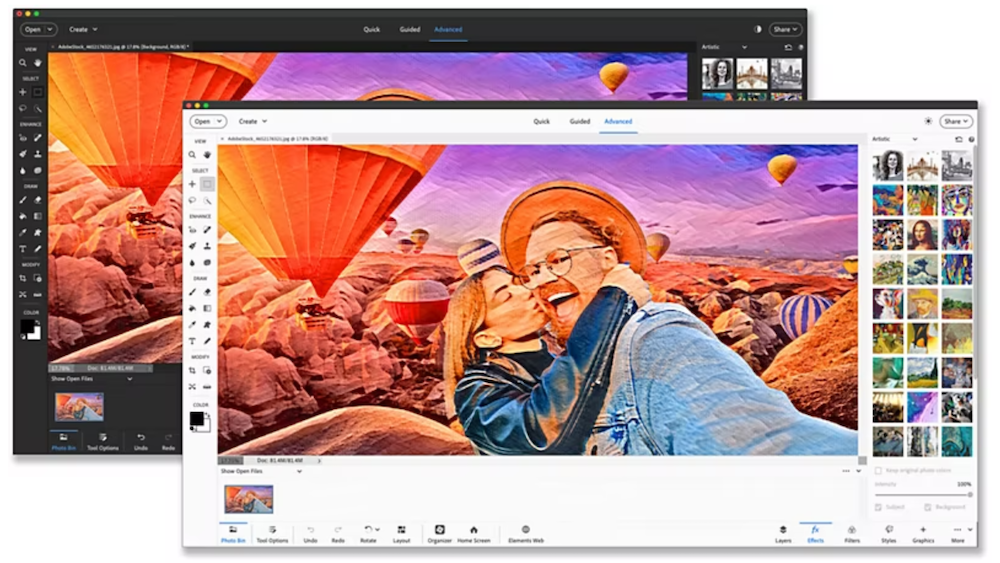
Photoshop Elements makes it simple to reach Adobe Stock images. Open the File menu to browse a large set of stock photos and add them to your projects in a few clicks.
- Select ‘File’ from the top navigation bar in Photoshop Elements to begin.
- Look for ‘Adobe Stock’ in the dropdown options and click to open the Adobe Stock dialog box.
- Browse a wide set of professional-grade images that are ready to drop into your design.
- Use the built-in search tool to find the exact photo you need by entering keywords that describe your subject.
- Browse the different categories that cover a range of themes and subjects so you can find the right match for your project.
- Adobe Stock runs inside Photoshop Elements, so you can add images to your workspace directly without switching between applications.
- Preview any image before you commit to it, so you can confirm that it fits your project, your layout, and your style.
- Manage previously licensed images by selecting them from this menu, which saves time and keeps your workflow in one place.
Through Adobe Stock website
After you have tried the File menu, you can also visit the Adobe Stock website directly to source high-quality images. The site gives you access to a large library of pictures and assets, and it is built for browsing that library from start to finish.
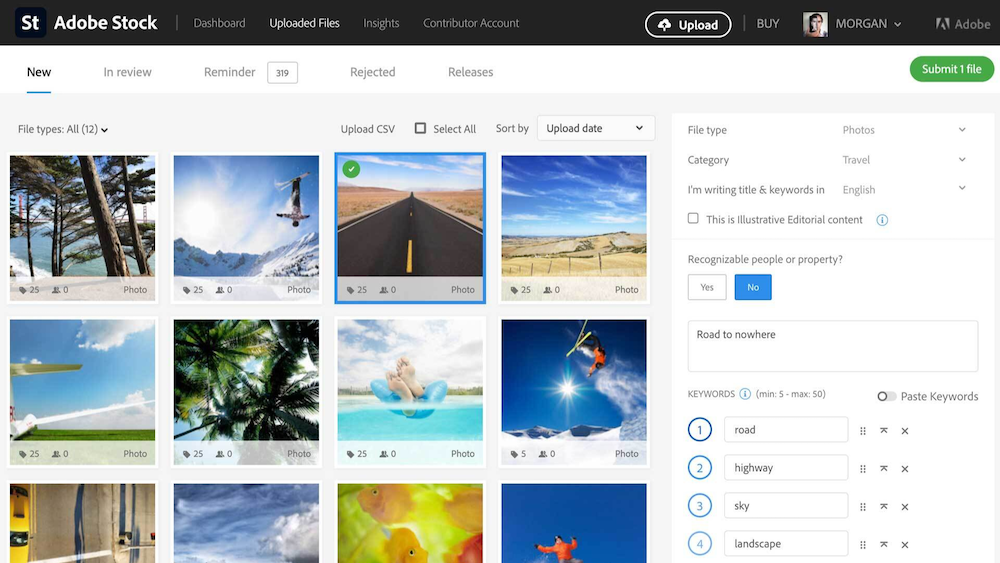
- Go to the official Adobe Stock website. Once there, the interface is built to help you search for the image you need.
- Use the search bar to enter keywords related to your project needs. This quickly displays a range of images that match the criteria you set.
- Use visual search technology if you have an existing image or style in mind. Upload an example photo, and Adobe Sensei finds similar stock images using aesthetic filters.
- Refine your search with parameters like copy space, frame rates, or depth of field to find exactly what you need.
- Browse through curated categories when you want inspiration or need images within a particular theme or style.
- Preview thumbnails give you a quick look at possible selections without having to click each image individually.
- Review licensing options carefully; whether you need royalty-free tracks to pair with music or licensed photos for commercial use, select the right license type.
- Use Adobe Stock’s mood-syncing feature when adding music to your projects, choosing from a range of royalty-free tracks sourced from talented artists.
- If editing is part of your task, download watermarked samples to test in your layouts before you commit to a purchase.
- Manage your licensed images by saving them in personalized libraries on the site, which makes them easier to organize and retrieve for future projects.
Using Adobe Stock Images
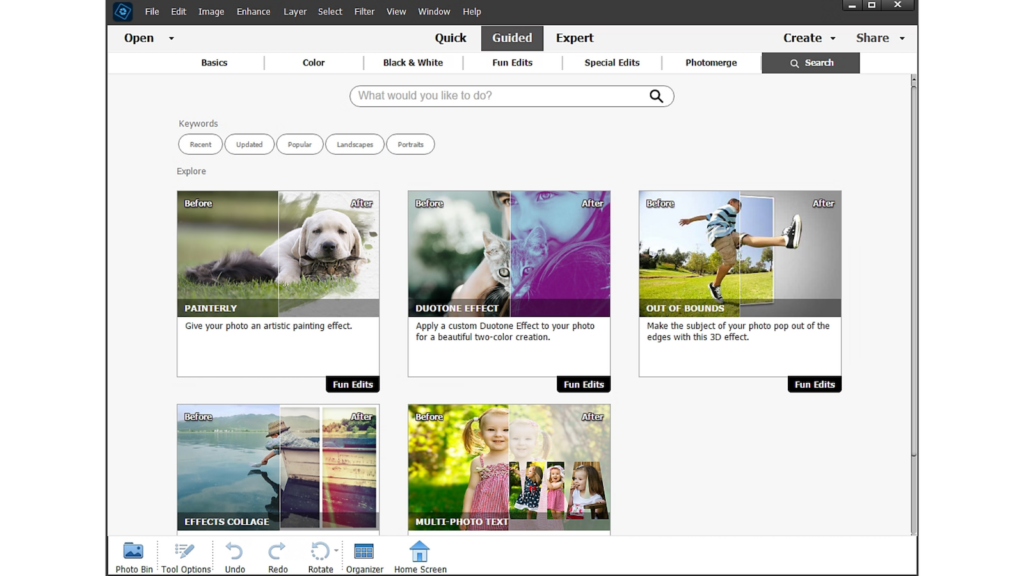
In Guided Mode, you can access and edit Adobe Stock images directly within your Adobe Creative Cloud software. This mode is built for users without advanced design skills, with a simple interface for adding high-quality stock content to your projects.
If you are more experienced, Advanced Mode gives you more customization and control over the images, so you can create unique designs for your projects.
In Guided Mode
Guided Mode in Adobe Stock simplifies your design and print project workflow. It is a strong tool for reaching high-quality creative assets quickly.
- Start with a free trial that includes 10 premium Adobe Stock assets at no cost, so you can try the workflow before you subscribe.
- Preview the potential of assets directly within Adobe applications you already use, such as Photoshop and Illustrator.
- License the exact image or design element you want right from the Guided Mode interface, without switching tools.
- Explore a large library of 3D content, fonts, and plugins that goes well beyond traditional images.
- Adobe Stock works inside Adobe software, so assets conform to your project requirements without leaving the application.
In Advanced Mode
In Advanced Mode, users can access many high-quality Adobe Stock images and use them with advanced tools in Photoshop Elements. This lets you put professional stock photography into your digital designs and visual content. Here is how to make the most of this feature:
- Navigate an extensive image library, using keywords and categories to find the right visuals for the project you are working on.
- Explore image licensing options directly from the Adobe Stock dialog box to stay compliant with the rules for creative asset usage.
- Work with photo editing tools in Photoshop Elements to customize and adjust the stock images you have chosen.
- Get access to diverse digital imagery that suits many design purposes, from graphic design work to online marketplace needs.
- Use Adobe Stock images to improve the quality and visual impact of your projects without leaving the familiar Photoshop Elements environment.
Also read How to License Popular Music for Your Videos Using Lickd Software
Conclusion
Adobe Stock and Marketplace are useful for anyone who needs high-quality visual content. Across Creative Cloud apps or a web-based workflow, users gain access to millions of professional assets, including images, graphics, videos, music tracks, templates, 3D content, and Premium and Editorial collections.
With easy licensing options directly in Adobe Photoshop, Illustrator, InDesign, XD, or Premiere Pro, creators can finish projects with speed and precision. You can find an image through visual search powered by Adobe Sensei or sync royalty-free music tracks using the ‘Audio Find Similar’ feature. Adobe Stock helps you work faster while keeping your creative process simple.
(Image Credit: Adobe)
Frequently Asked Questions
How can I access Adobe Stock images?
You can access Adobe Stock images by creating an account on the Adobe Stock website and choosing a subscription plan that suits your needs.
What types of high-quality images are available on Adobe Stock?
Adobe Stock offers a wide range of high-quality images, including stock photos, vectors, illustrations, and videos, catering to various creative projects and themes.
Can I use Adobe Stock images for commercial purposes?
Yes, you can use Adobe Stock images for commercial purposes by purchasing the appropriate license for the image or content you intend to use.
Are there any limitations on how I can use Adobe Stock images?
There are specific usage restrictions outlined in the licensing agreement for each image or asset purchased from Adobe Stock. Be sure to review the terms associated with each item before using it in your project.
How do I download and integrate high-quality Adobe Stock images into my creative projects?
Once you’ve found a suitable image on Adobe Stock, simply purchase it, then download and integrate it into your project using design software such as Photoshop or Illustrator.

- Independent picks for exactly what you just read about
- Matched to your team size & needs
- Vendors don't pay for placement
Step 1 of 4
How big is your team?
We tailor recommendations to companies your size.















Related Articles

Accounting Software
Free Design Tools: Say Goodbye to Boring Invitations in 2026
Continue reading →
Accounting Software
Best QuickBooks Alternatives in 2026: Top Accounting Software Options
Continue reading →
Accounting Software
Best Accounting Software for Small Business in 2026 – Top 3 Picks
Continue reading →
Accounting Software
Top 10 Free Accounting Software in 2026 – Best Picks for Small Businesses
Continue reading →